Jobs
View all jobs
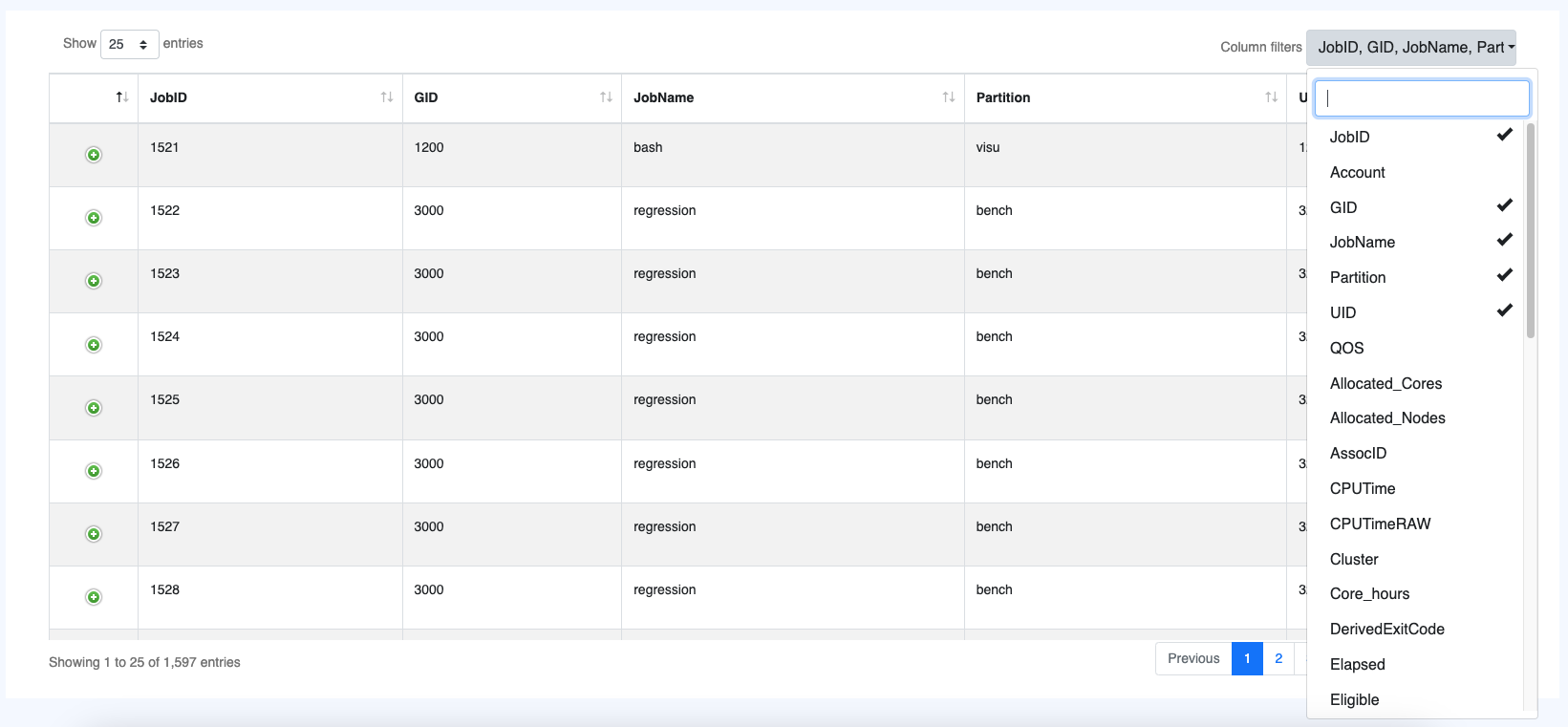
OKA gives you access through this page to Jobs’ data based on the current filtering (date and advanced, see Filters). This jobs page can be accessed from most of the existing modules using the top bar button placed left of the filtering options.

There, you can select the columns that you wish to display using the top right menu. If you wish to see details for one of the jobs you can just ‘expand’ it using the button in the first column and therefore access all the parameters for this particular job directly.
Export Functionality

The Jobs page provides export capabilities to help you extract job data for further analysis.
Exported Files
Generated files will be available for download soon after:
File format: a CSV file compressed with gzip, roughly ten times smaller than the raw CSV. Spreadsheet tools and most data libraries open it directly; otherwise, decompress it first (for example
gunzip <file>.csv.gz).File naming convention: Files are named with the following format
[cluster names]_[YYYYmmdd_HHMMSS].csv.gzProcessing status: Files show
processingstatus while being generated and are not downloadable until the process has endedDownload availability: Only completed files can be downloaded. They will be available for the next 3 months.
Note
Before OKA v3.3.0, exports were plain .csv files. Existing .csv exports remain listed and downloadable until they expire.
Scripts that download exports through the API must handle the .csv.gz format.