Reporting
The Reporting module allows superusers to configure multi-page PDF reports generated automatically from OKA dashboard pages. Reports are scoped to a workload, scheduled with a cron expression, and distributed by email after each run. When a loop is configured, OKA generates one PDF per distinct field value (e.g., one report per Project or per User).
Reports are managed from Reporting.
Key concepts
Concept |
Description |
|---|---|
Report |
The main configuration: which pages to capture, which workload to scope, optional schedule, retention policy, and notification recipients. |
Page |
One OKA dashboard view included in a report. Each page has an order, an optional title override, optional intro and outro text, and optional UI actions to apply before the screenshot is taken. |
Loop / Fan-out |
Generating one PDF per distinct value of a chosen field (e.g. Project, User). OKA can discover values automatically at run time or use an explicit list. |
Global configuration |
Default display overrides applied to every page in the report: resolution, datetime column, category, CPU/GPU tab, and grouping. Individual pages can override these defaults. |
Run result |
A single execution record with status ( |
Retention |
Number of days to keep generated PDF files. OKA deletes expired files automatically each day. Leave blank to keep files indefinitely. |
Notification profile |
A reusable delivery configuration. See Notification profiles. |
Reports
Report list
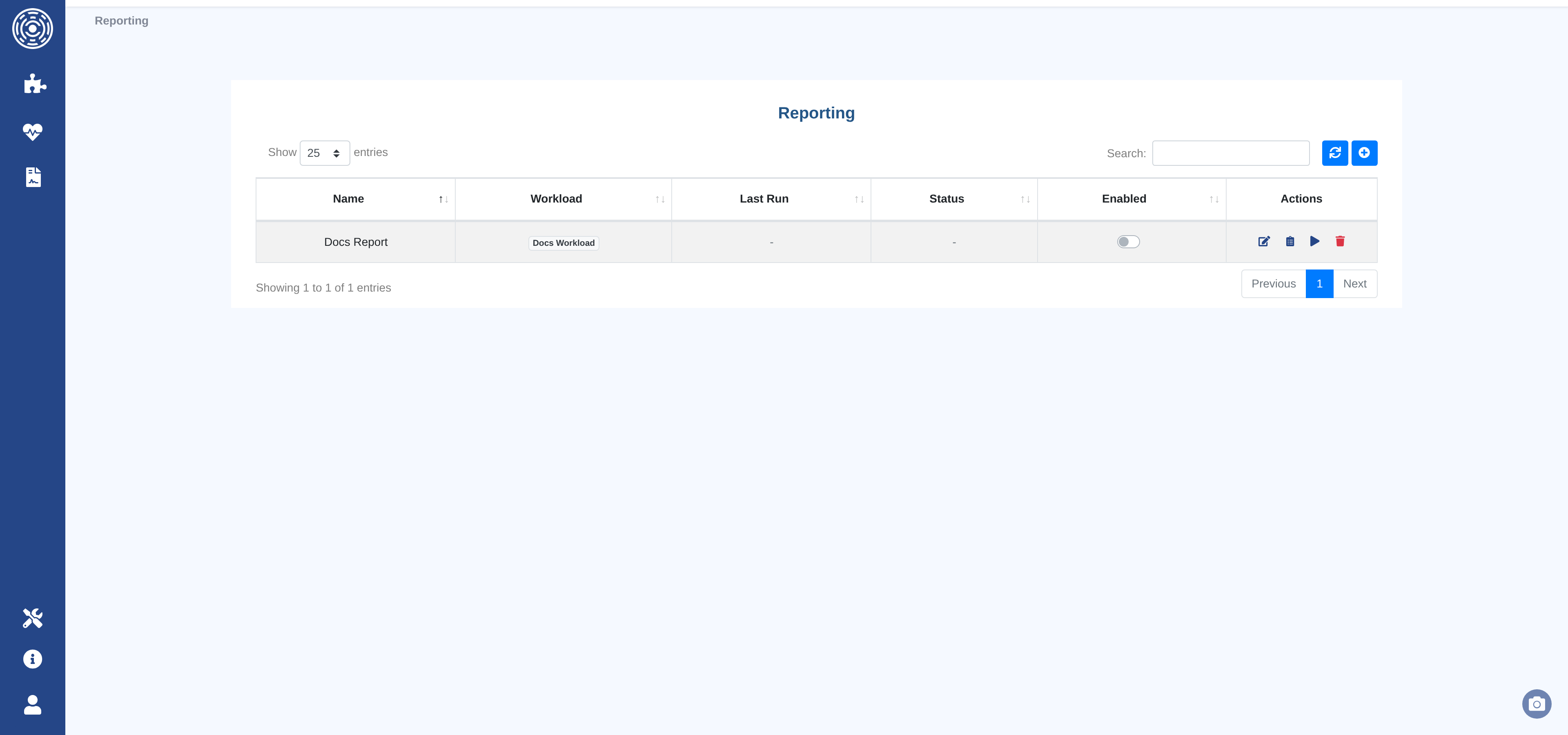
The report list shows all configured reports with their schedule (cron expression), linked workload, and the status of the most recent run.
Actions available per row:
Enable / Disable — pause or resume the cron schedule without deleting it.
Edit — open the configuration form.
History — view all past run results for this report.
Run now — trigger an immediate generation outside the schedule.
Delete — permanently remove the report, its pages, and all run records.
Creating or editing a report
The configuration form has four tabs.
General tab
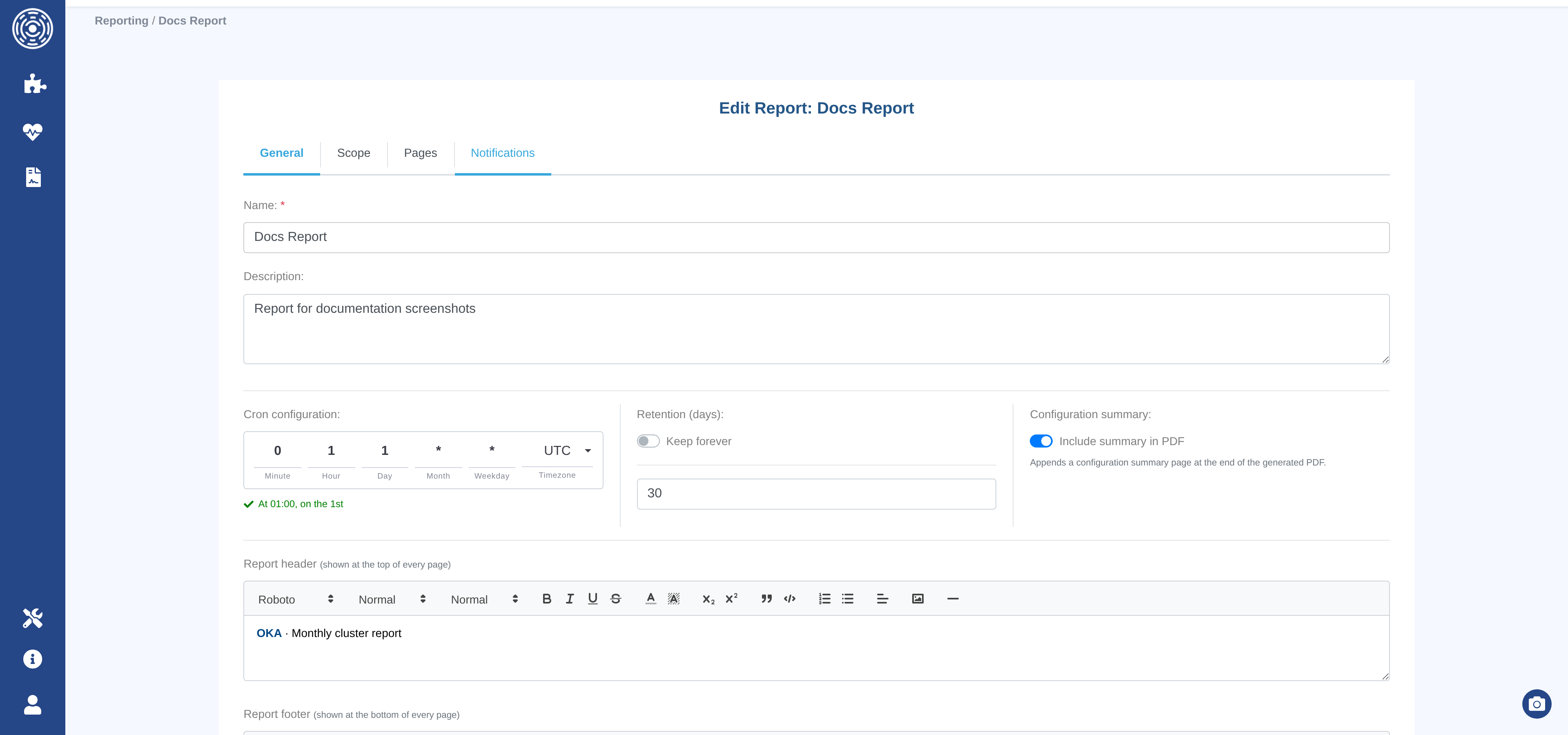
Name (required) — a unique name for this report across OKA.
Description — optional free-text description.
Schedule (cron) — when to generate the report automatically. Enter a standard cron expression, for example
0 8 * * 1to run every Monday at 08:00.Retention (days) — how long generated PDF files are kept. Toggle on “Keep forever” if you do not want them to be automatically deleted.
Configuration summary — toggle on Include summary in PDF to add a last page to the PDF that lists the scope and configuration used to generate it (see Configuration summary). Off by default.
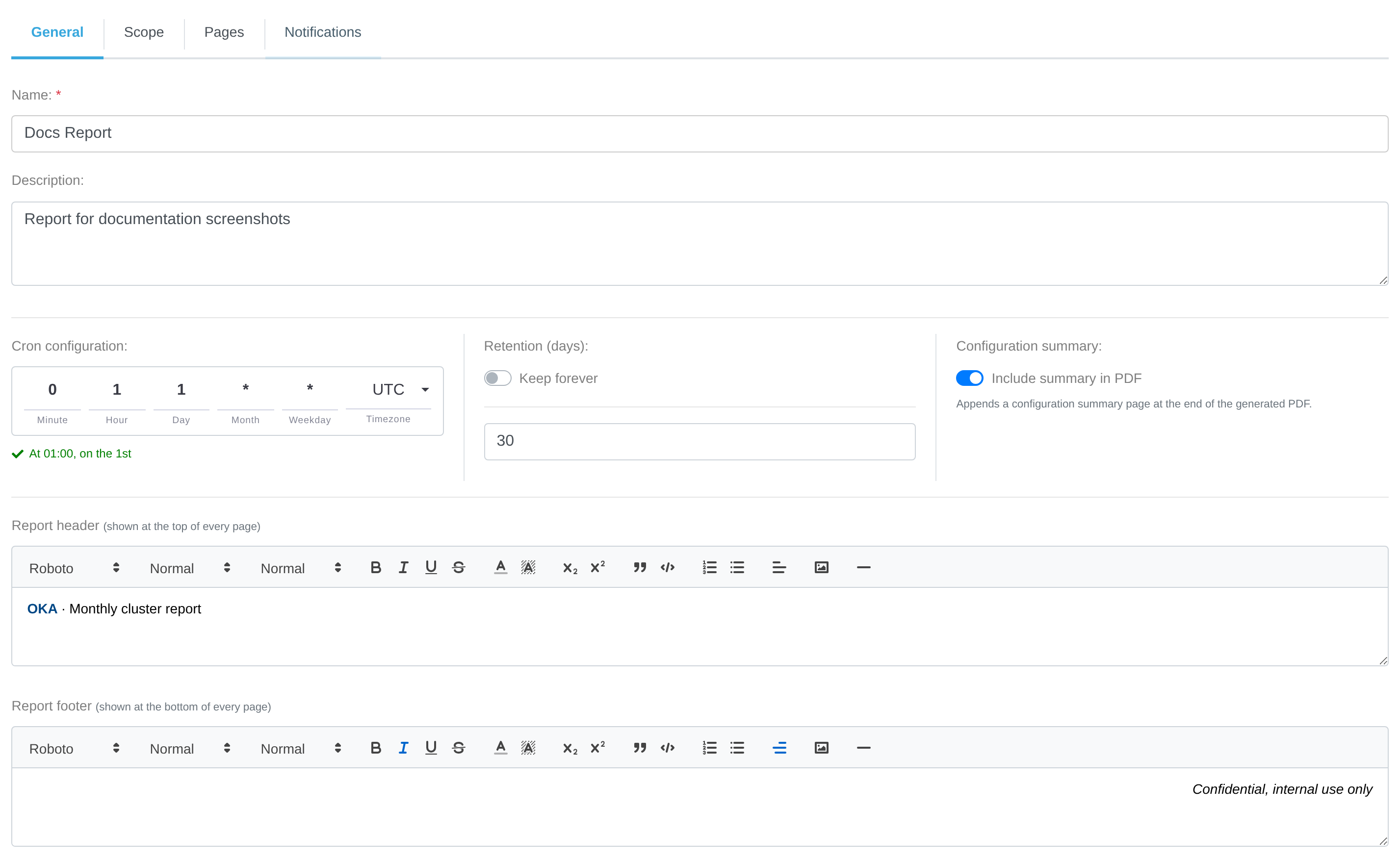
Report header and Report footer — optional rich-text blocks shown on every page of the PDF: the header above the page title, the footer below all the page content. Use them for a logo, the report name, or a confidentiality notice. See Rich-text blocks.
Scope tab
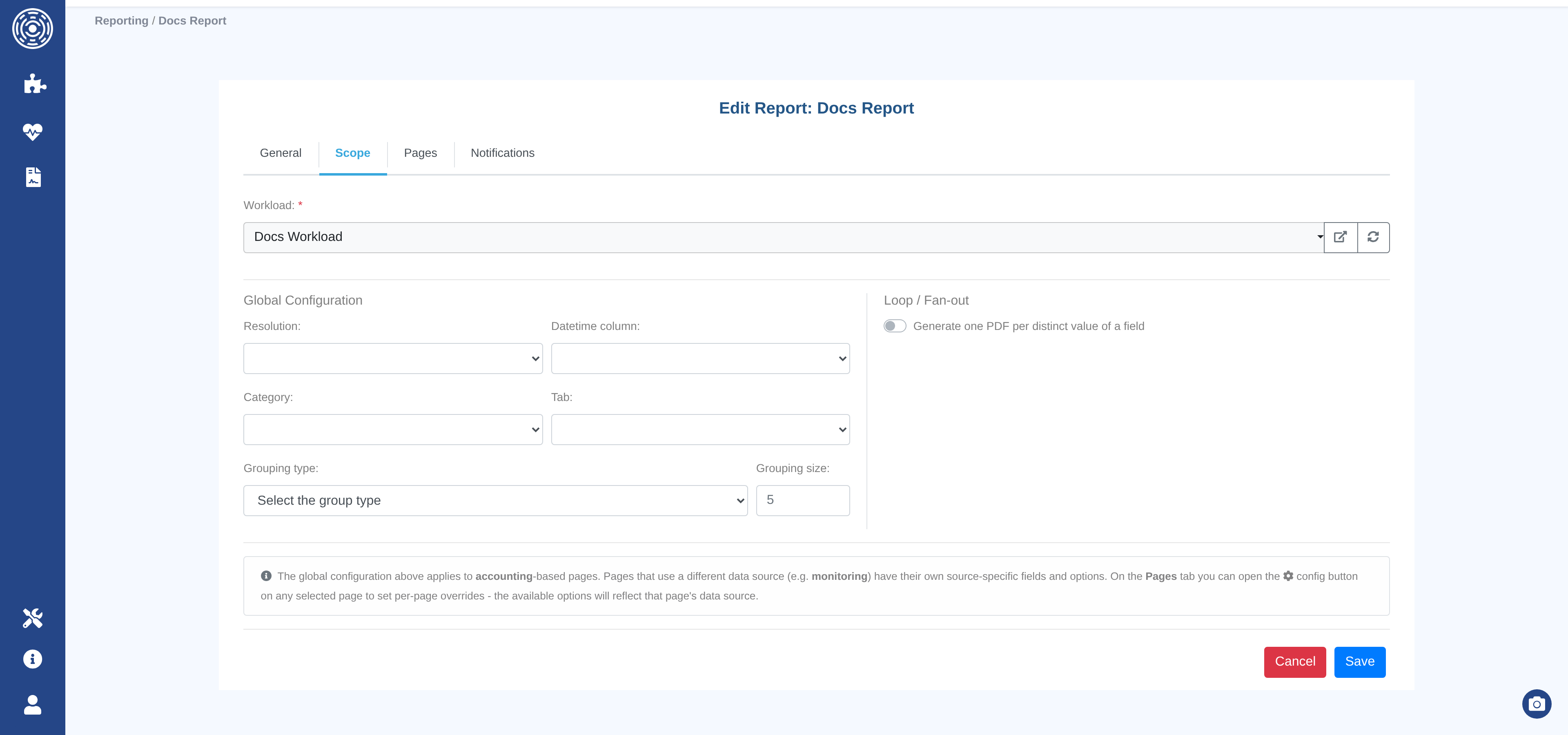
The Scope tab has three sections:
Workload (required) — determines the set of clusters and filters applied to all pages in the report. Select from existing workloads. See Workloads.
Note
Changing the workload affects all pages in this report immediately. Workloads are shared and mutable — editing a workload impacts every report that references it.
Global configuration — default overrides applied to every page. Individual pages can shadow these values in the Pages tab.
Option |
Description |
|---|---|
Resolution |
Time bucket used for charts and aggregations: |
Datetime column |
Which job timestamp to use: |
Category |
Metric shown on cost and load pages: |
Tab |
Default hardware view: |
Grouping |
Grouping type (e.g. User, Project) and bucket size applied to pages that support it. |
Loop / Fan-out — toggle Generate one PDF per distinct value to enable fan-out mode.
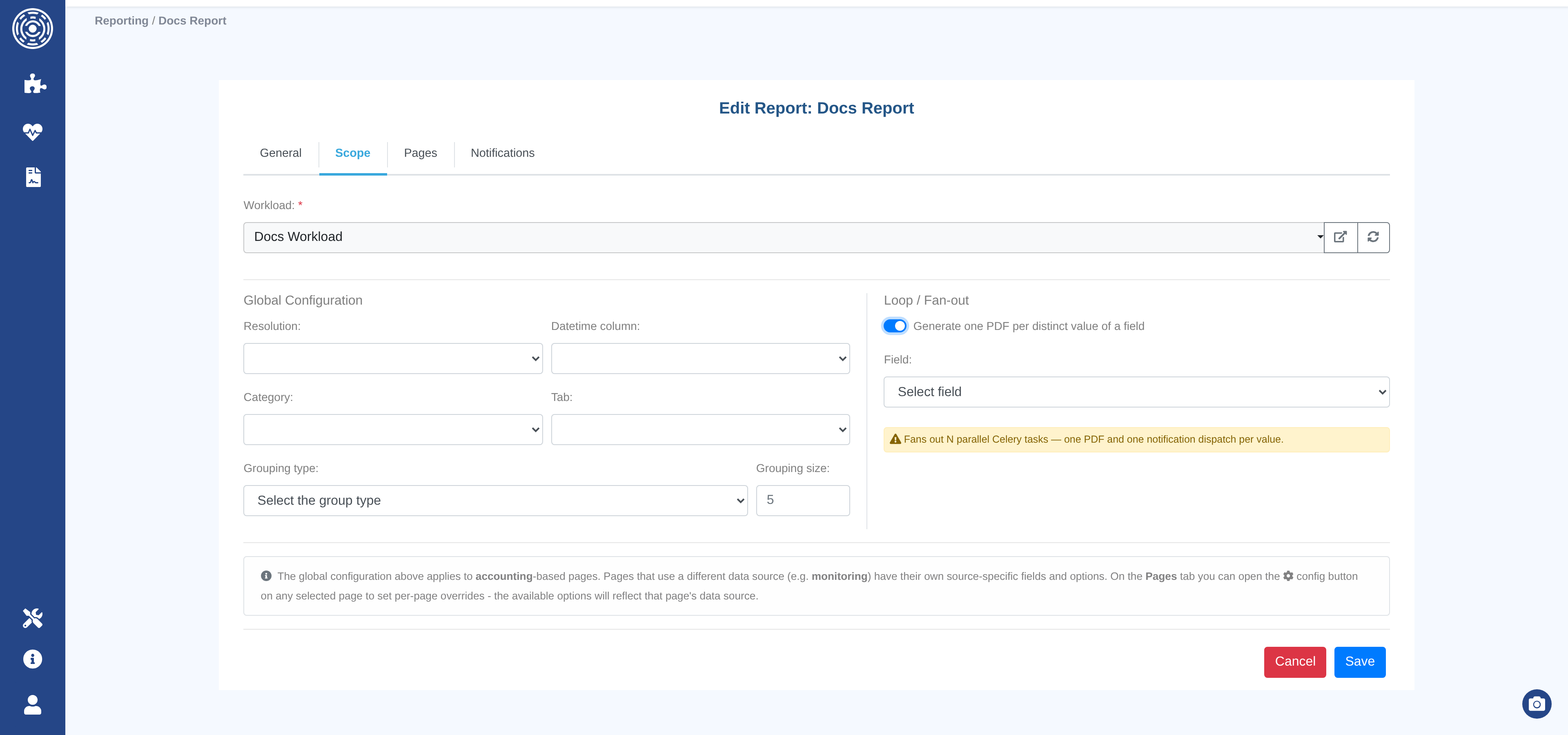
When enabled:
Field — the accounting field whose distinct values drive the fan-out (e.g.
Project,User).Auto-discover (default) — OKA queries the workload’s data at run time and generates one PDF per value found (up to 1 000 values).
Use manual list — enter a comma-separated list of explicit values. Only those values are used, regardless of what exists in the data.
Note
Loop fan-out generates one run result per value. Each result has its own PDF file and its own status.
Pages tab
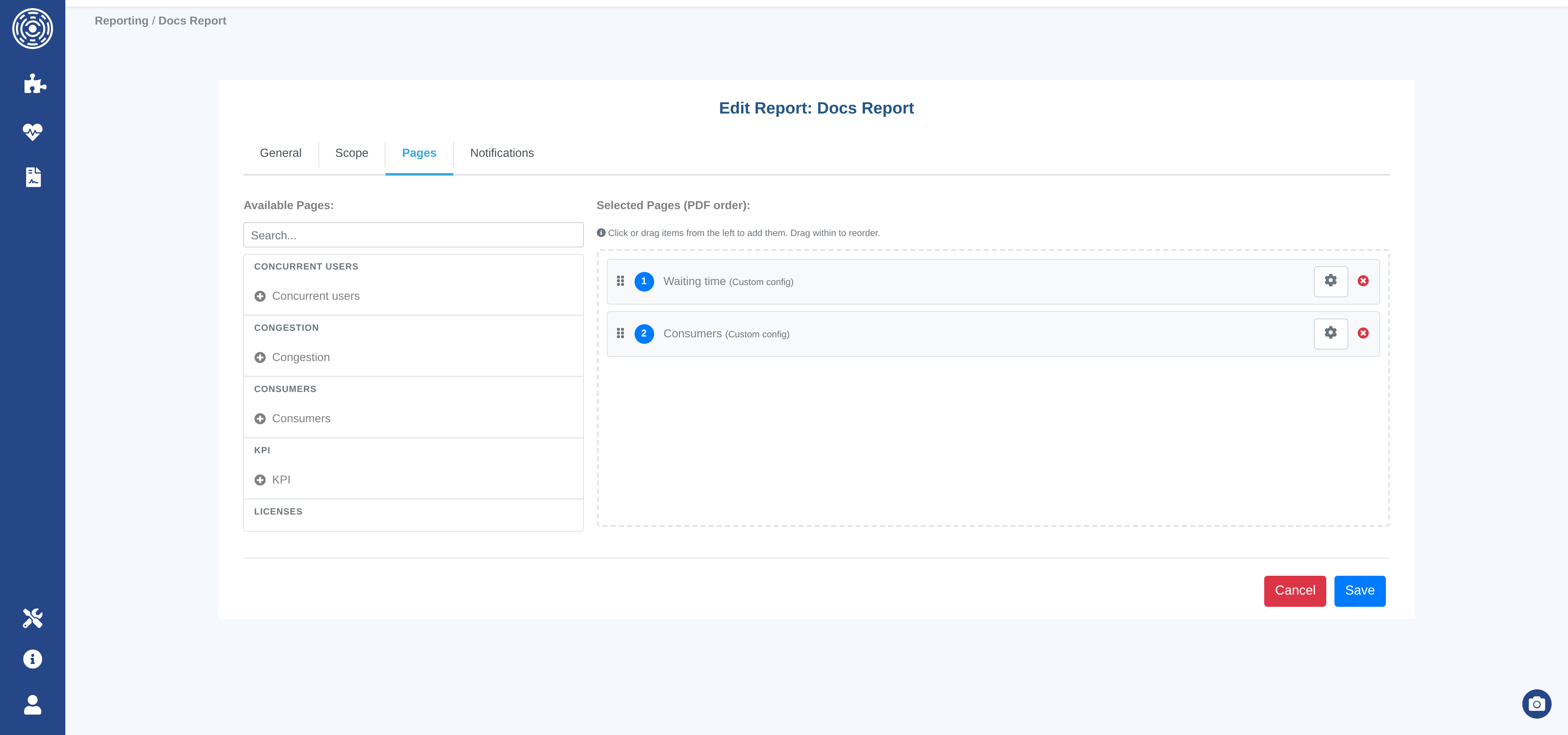
Add the OKA dashboard pages that should appear in the generated PDF.
Use the Add page catalog to browse available pages by module or search by title. The same page can be added more than once (e.g. with different UI action combinations).
Drag rows to reorder pages. The order determines the capture sequence and the page order in the final PDF.
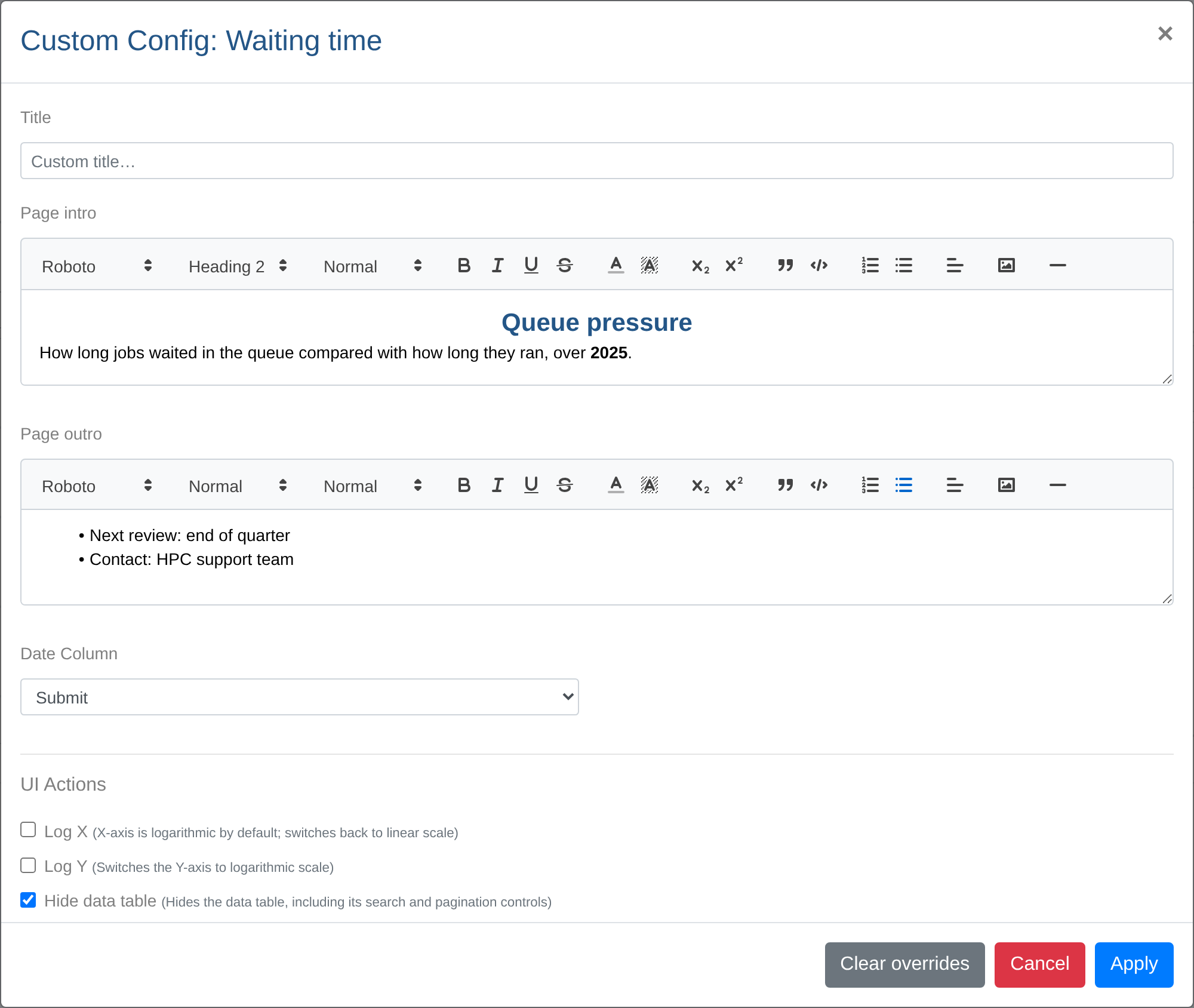
Per-page options:
Title override — replaces the default page title in the PDF header.
Page intro and Page outro — optional rich-text blocks shown on this page only: the intro between the page title and the page content, the outro after the page content. See Rich-text blocks.
UI actions — a set of browser interactions (clicks and select changes) applied to the page before the screenshot is taken. Available actions depend on the page. Examples: toggle a percentage/absolute-value button, switch the grouping selector to User.
Hide data table — hides the page’s data table(s), including their search and pagination controls, so only the charts appear in the PDF. Available on the pages that have a data table under their charts: Throughput (Waiting time, Frequency, Slowdown), Load (Cluster load, Job load, GPU load, Nodes load, Occupancy), Licenses and Concurrent users.
Group by and Sub-group by (Consumers pages) — the category and sub-category on which the Consumers table is aggregated, as on the Consumers page itself.
Rich-text blocks
The report header and footer (General tab) and the page intro and outro (page configuration) are written with a rich-text editor. It supports fonts, headings and text sizes, bold, italic, underline and strike-through, text and background colors, alignment, ordered and bullet lists, quotes and code blocks, images, and dividers. Images are stored in the report itself and can be resized in the editor.
On every page of the PDF, the blocks appear in this order:
Report header, followed by a divider when a header is set
Page title
Page intro
Page content
Page outro
Report footer
The blocks only appear in generated PDFs: they are not shown when the page is opened in OKA, and they are not shown on the configuration summary page.
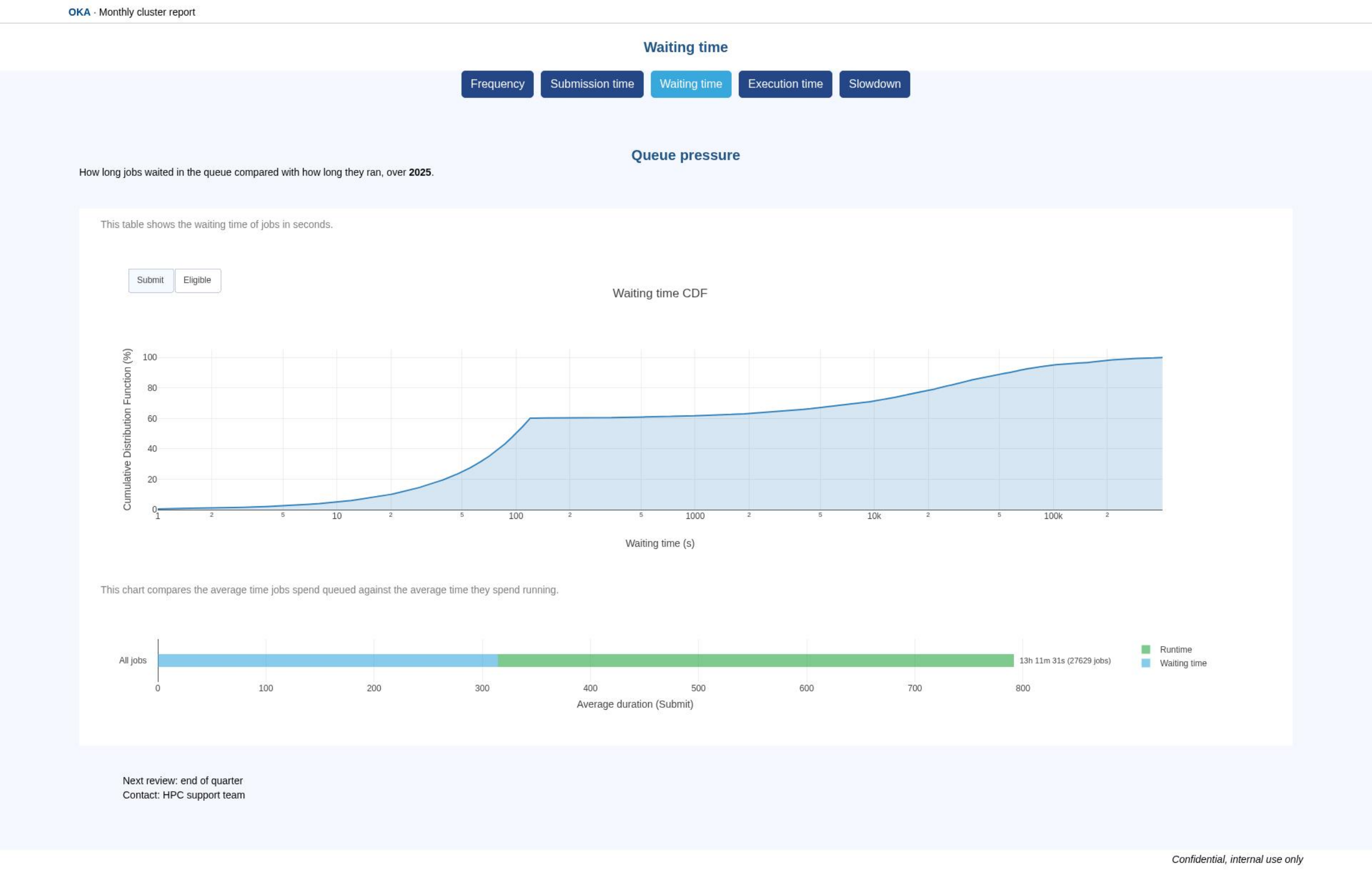
Notifications tab
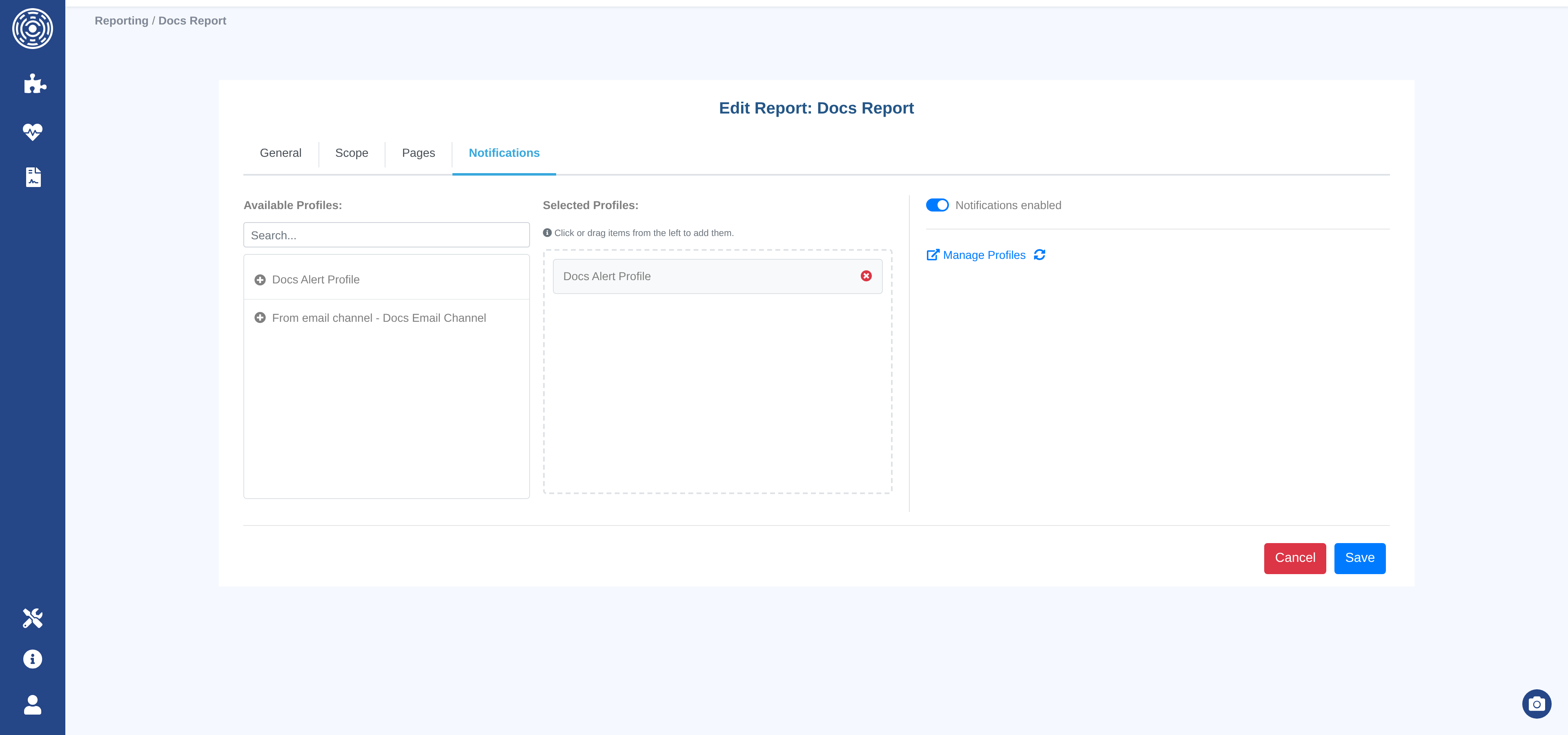
Notification profiles — select one or more notification profiles to receive the generated PDF by email. All channels in all selected profiles are notified.
Notifications are sent once per run:
Non-loop run — one notification with the single PDF attached.
Loop run — one notification is sent for each individual values in the loop, each with its own PDF.
To configure profiles and delivery channels, see Notification profiles.
Run history
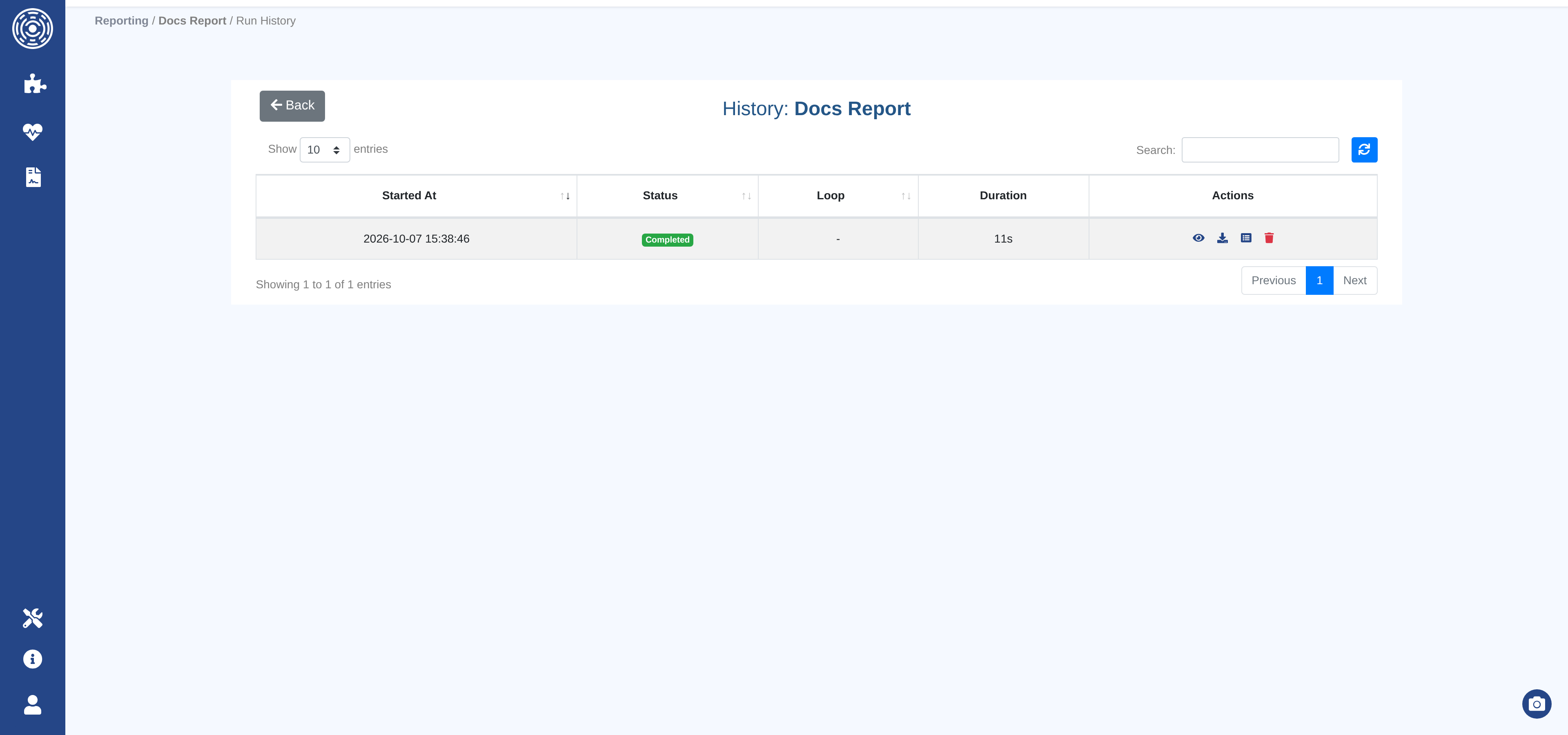
Open the run history from the History action of the report list. It shows every past execution with:
Started at — when the run began.
Status —
Completed,Failed,Processing, orPending, colour-coded for quick scanning.Loop value — populated when a loop is configured; identifies which field value this PDF was generated for.
Duration — wall-clock time for the generation.
Actions:
View PDF — opens the generated file. The link is available until the file is purged by the retention policy.
Open summary — opens the configuration summary of the run (see Configuration summary).
Delete Run — deletes the run and its PDF file, after confirmation. This cannot be undone.
Note
Once the retention period expires the PDF file is deleted and the download link disappears. The run record itself is kept until you delete it.
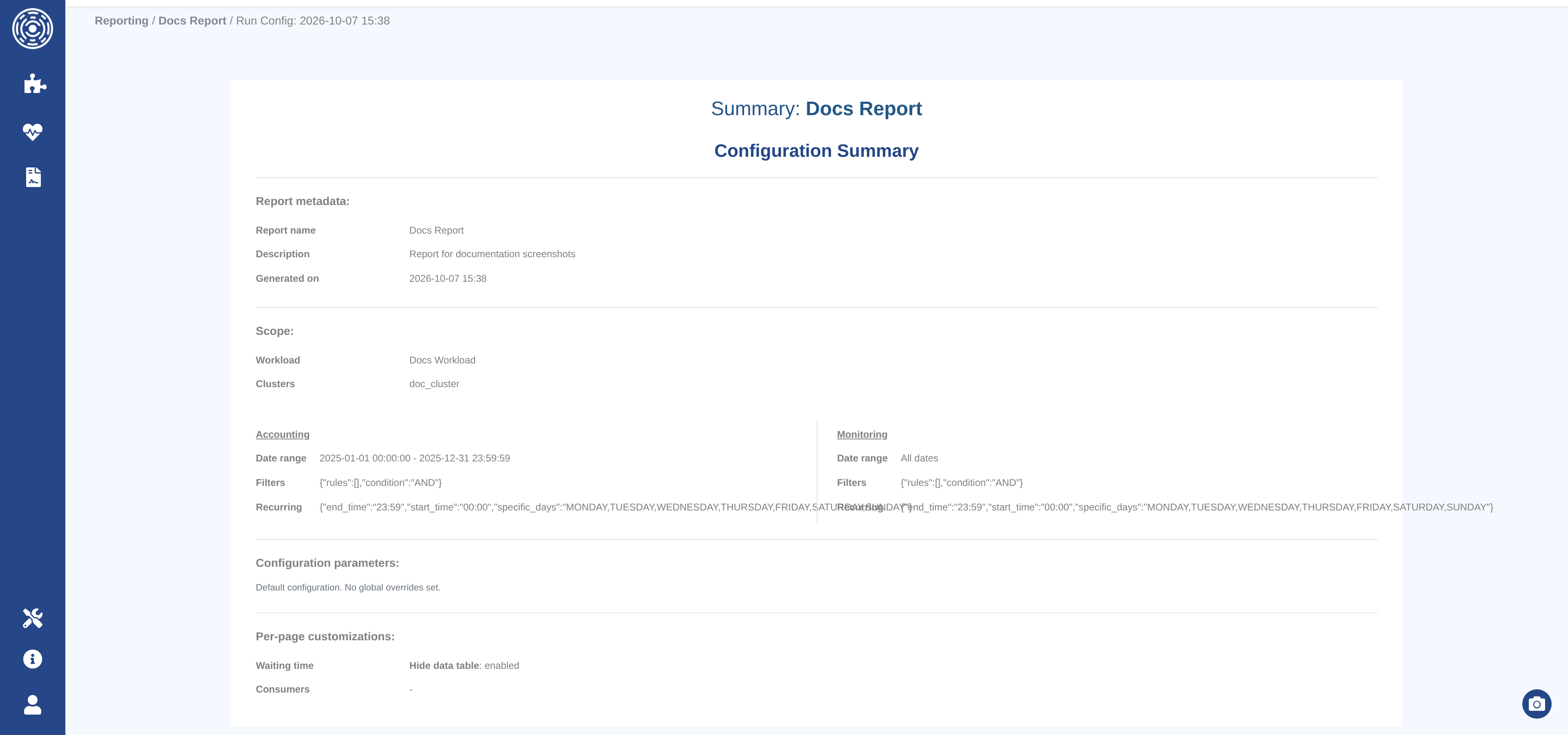
Configuration summary
OKA records the scope and configuration of every run when it starts. The configuration summary shows them in four sections:
Report metadata — report name and description, generation date, and the loop field and value for a loop run.
Scope — workload, clusters, date range, filters and recurring time windows.
Configuration parameters — the global configuration of the Scope tab, or “Default configuration” when no global override is set.
Per-page customizations — one row per page with the options that differ from the global configuration.
The summary reflects the report as it was when the run started: editing the report or its workload later does not
change it. It is available from the run history for every run, and is added as the last page of the PDF when
Include summary in PDF is on. Runs generated before OKA v3.3.0 have no summary.