Throughput
Introduction
This module analyzes the frequency at which jobs are submitted and enqueued by the job scheduler, as well as their slowdown (time spent by a job on the cluster over its execution time).
Key metrics
Number of jobs
Submitted,Eligible,StartedorEndedpersecond,minute,hour,dayormonthInter-arrival, shows how long it takes for two consecutive jobs to be
Submitted,Eligible,StartedorEndedon the cluster.
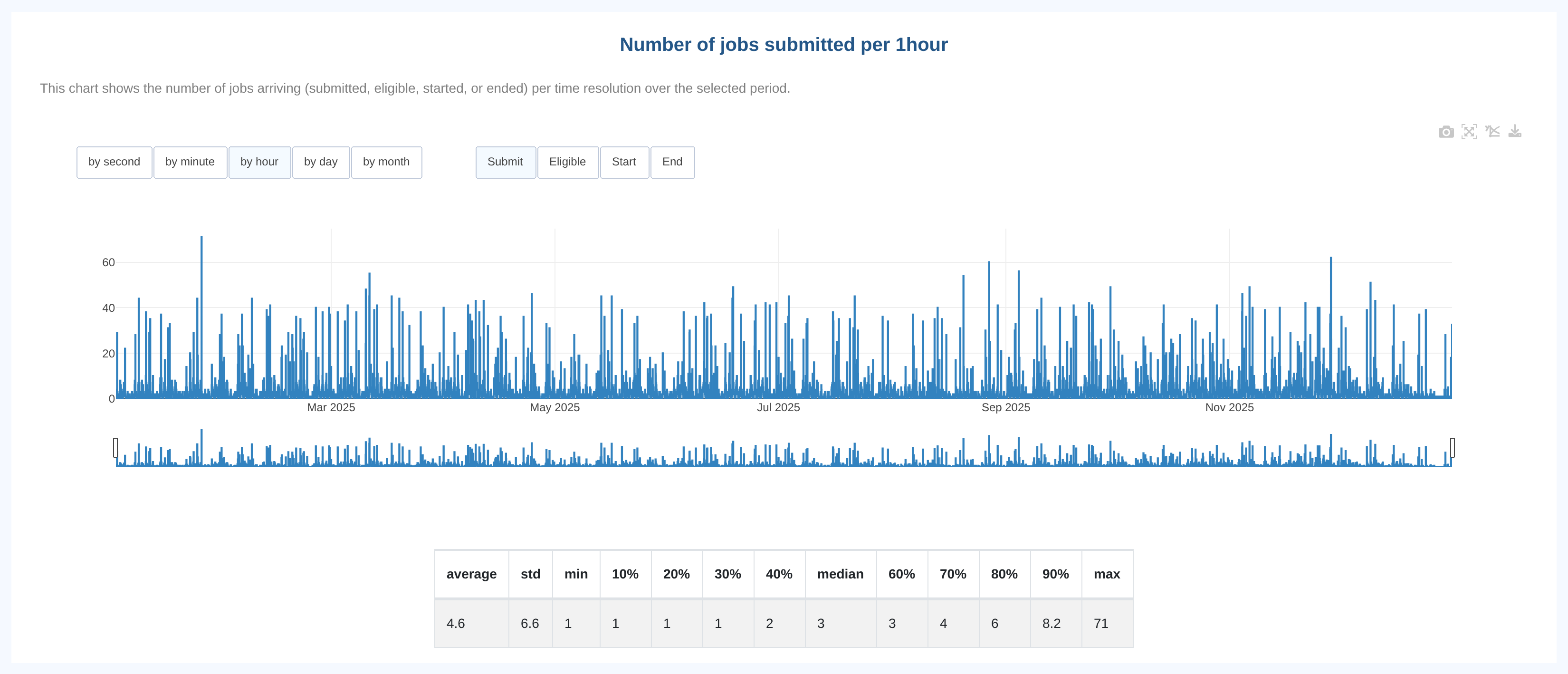
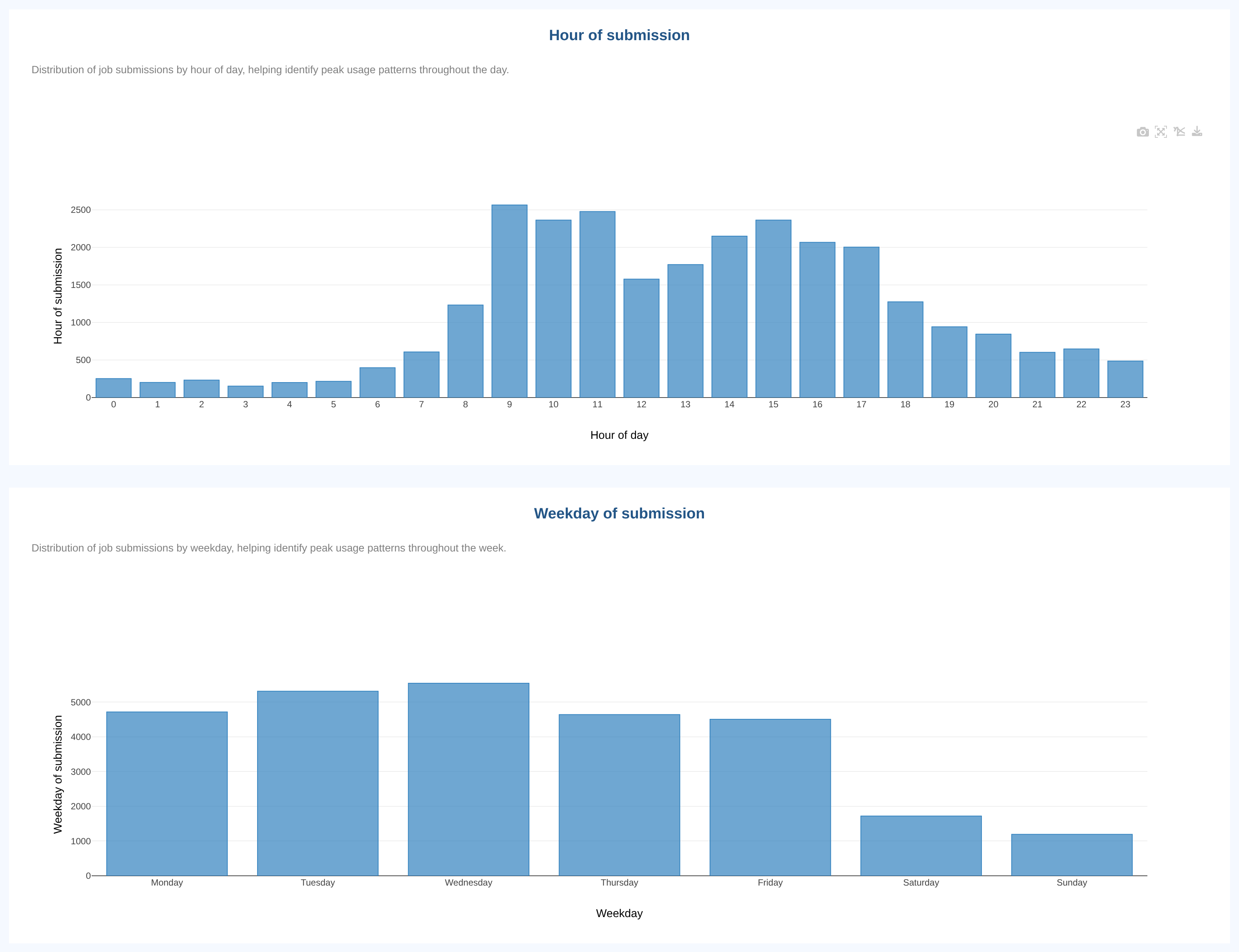
Job submission time
Job submission weekday
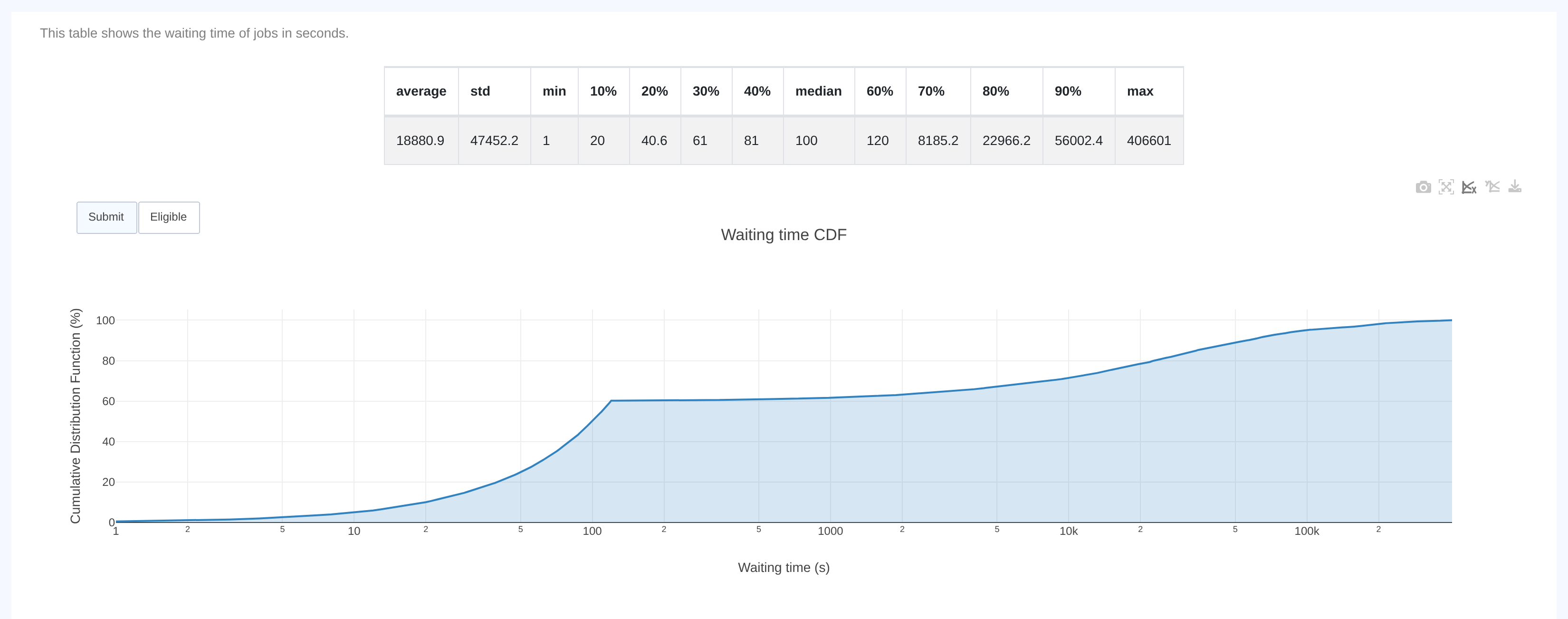
Waiting time of jobs in seconds based on either
SubmitorEligibledate.
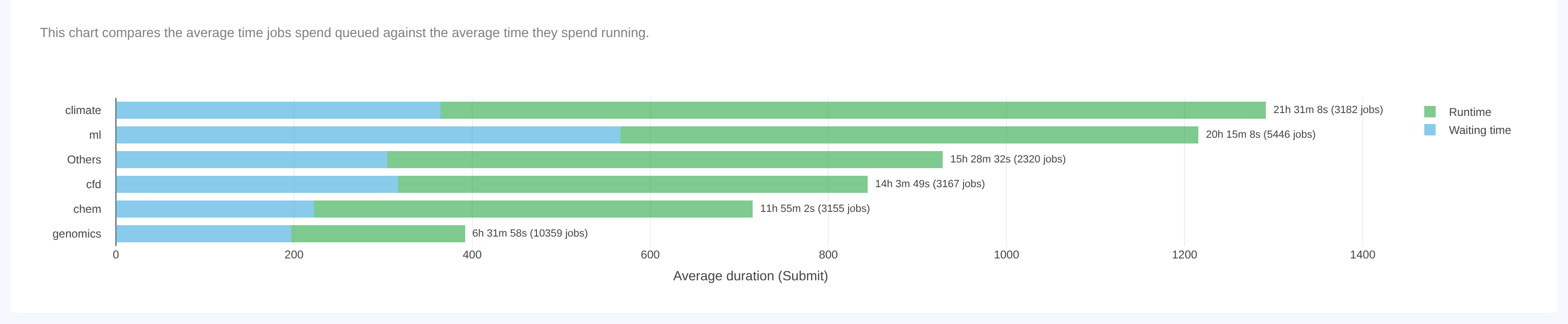
Average waiting and running time. Compares the average time jobs spend queued with the average time they spend running. Without grouping, a single bar shows both averages for all the filtered jobs. With grouping, there is one bar per group, sorted by decreasing total (average waiting time + average running time). As on other grouped charts, the groups are the largest ones by number of jobs, and the remaining jobs (including jobs with no value for the grouping field) are gathered in an
Othersbar. The label at the end of each bar gives the total duration and the number of jobs it covers. The chart follows theSubmit/Eligibleselection of the waiting time chart above it: withEligible, the waiting time is measured from theEligibledate. TheDownload databutton of the chart exports the values in minutes.
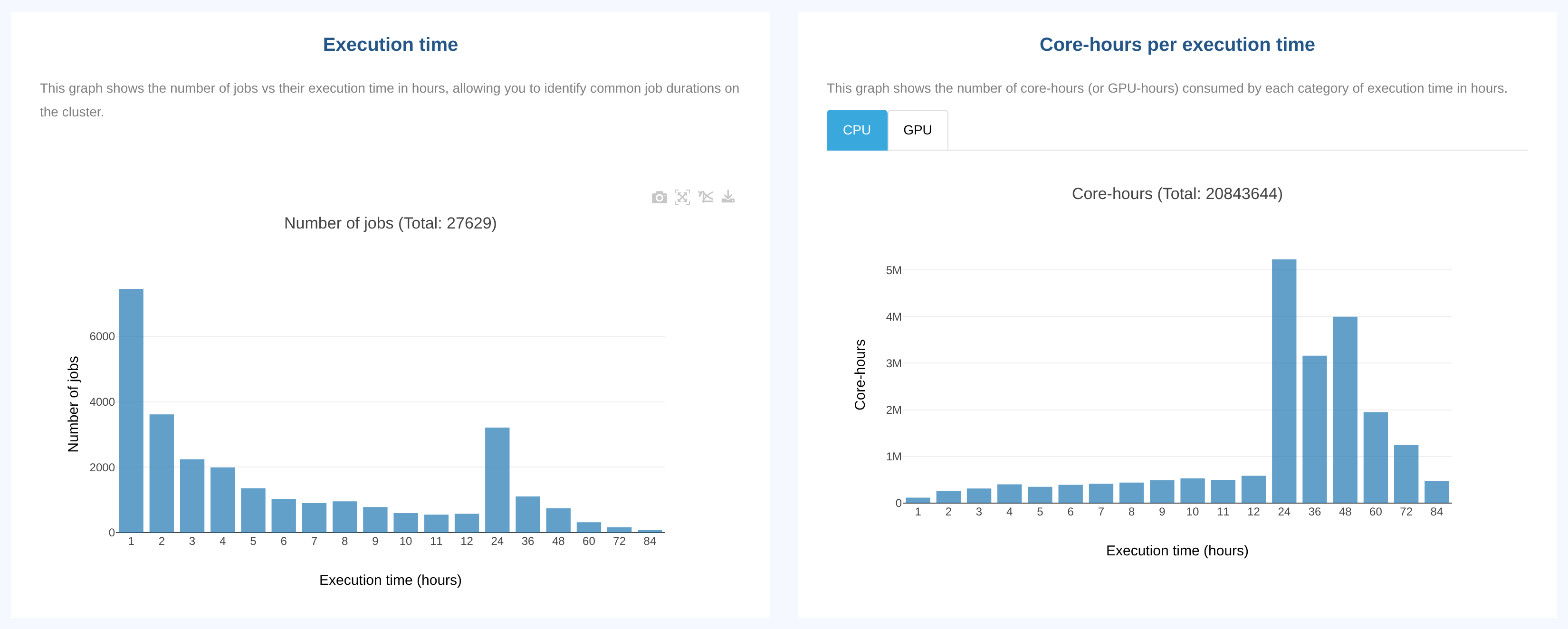
Execution time
Core-hours or GPU-hours per execution time. Integrated with tabs,
CPU (Core-hours)orGPU (GPU-hours)
When a grouping is selected, each of these charts picks and orders its groups by its own metric: number of jobs for the first one, core-hours or GPU-hours for the second one.
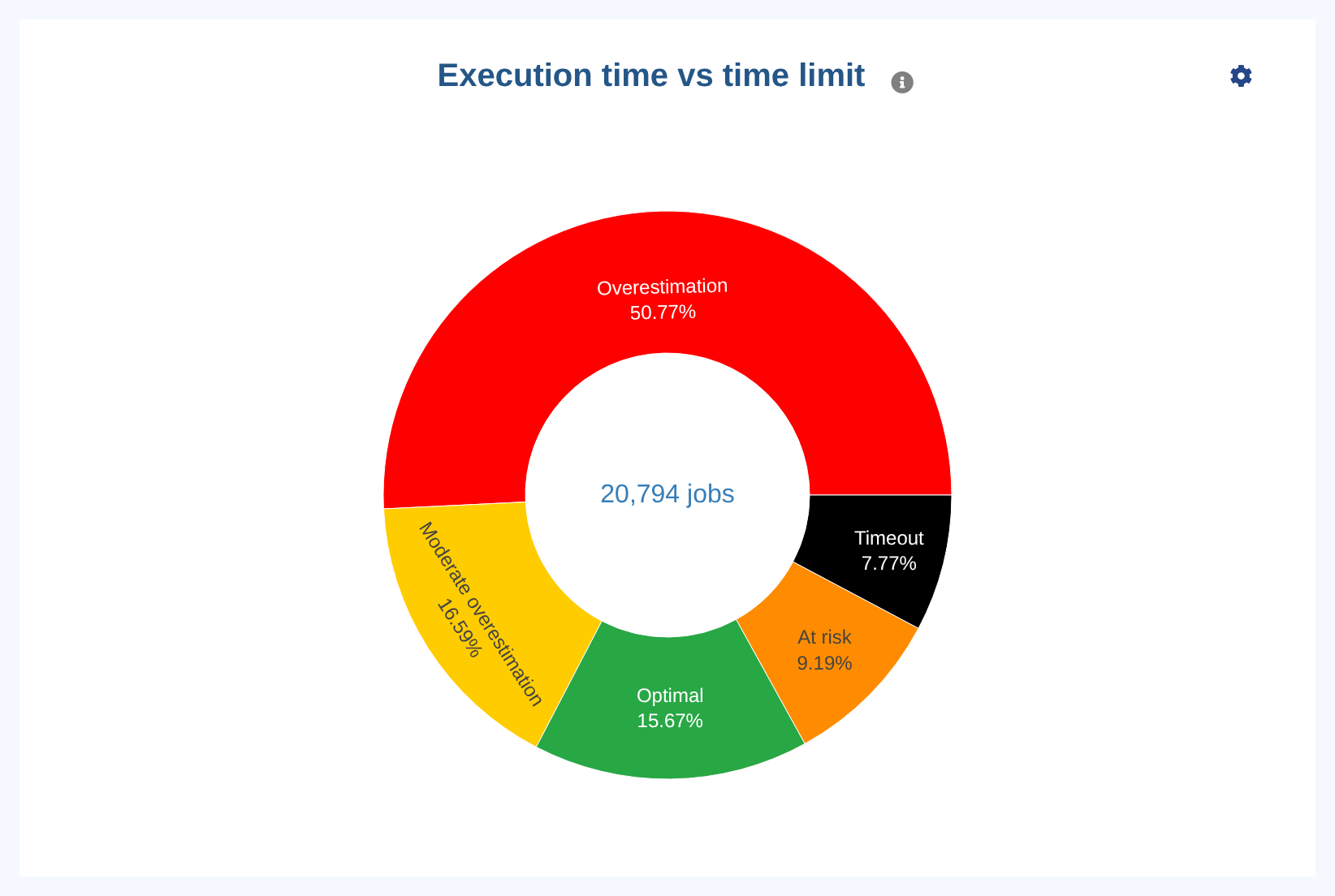
Execution time vs time limit. Shows how much of their time limit jobs actually used, as a sunburst of ratio categories (
Execution time / Time limit). The default categories areOverestimation,Moderate overestimation,Optimal,At riskandTimeout. The center of the chart shows the number of jobs taken into account.
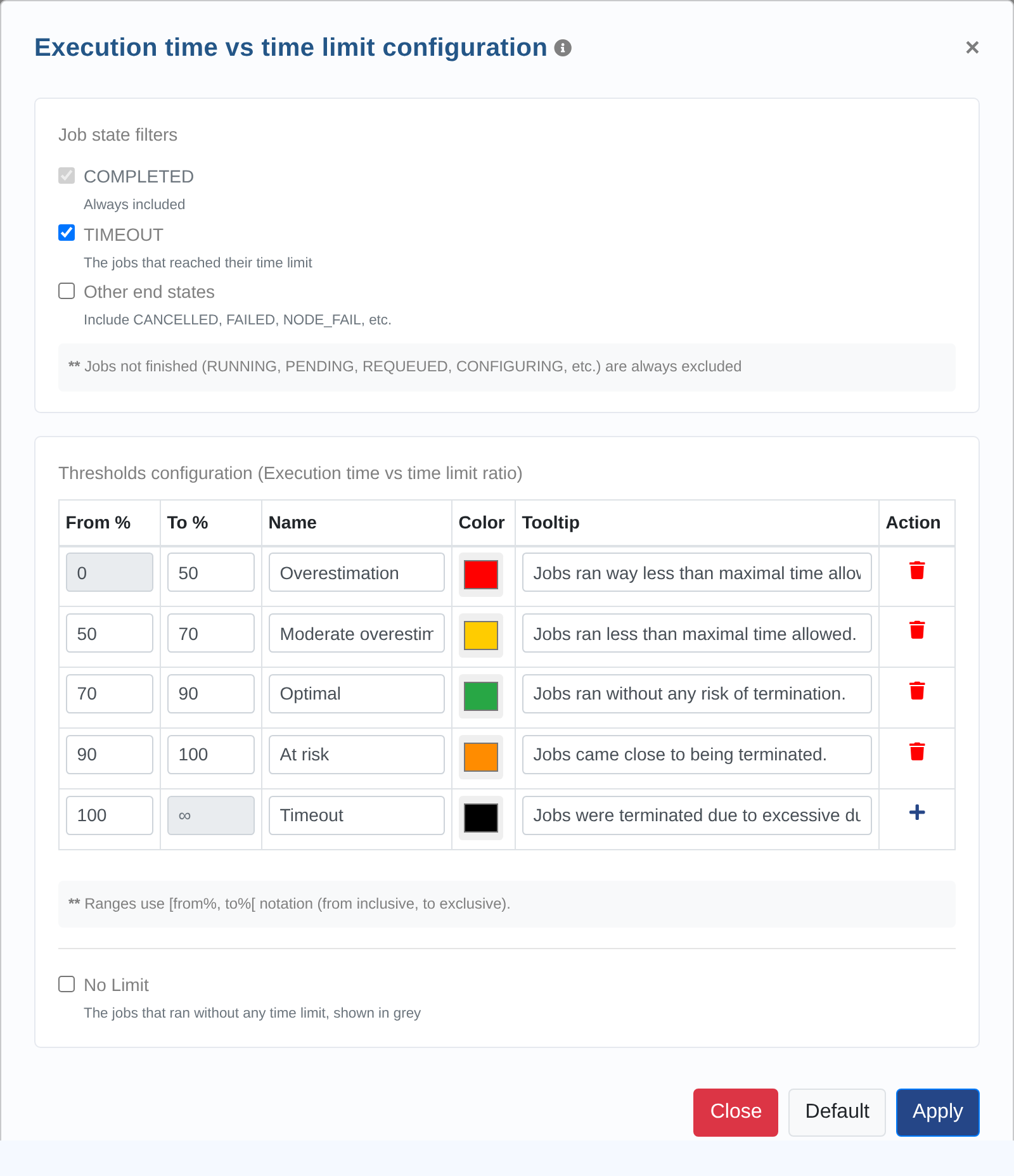
Superusers can configure this chart from its settings icon (⚙). The configuration applies to all users:
Job states:
COMPLETEDjobs are always included.TIMEOUTjobs are included by default, andOther end states(CANCELLED,FAILED,NODE_FAIL, etc.) are excluded by default. Jobs that are not finished (RUNNING,PENDING, etc.) are always excluded.No Limit: adds a category for jobs without a time limit. It is disabled by default.
Thresholds: the bounds of each category, in percent. Categories stay contiguous: changing the upper bound of a category moves the lower bound of the next one. At least two categories are required. Use
Defaultto restore the default categories.
The Resources consumed vs. requested memory chart works the same way (see Resources).
Slowdown. This metric allows you to put into perspective the time jobs spend in queue vs. their execution time. Computation is based on either
SubmitorEligibledate.
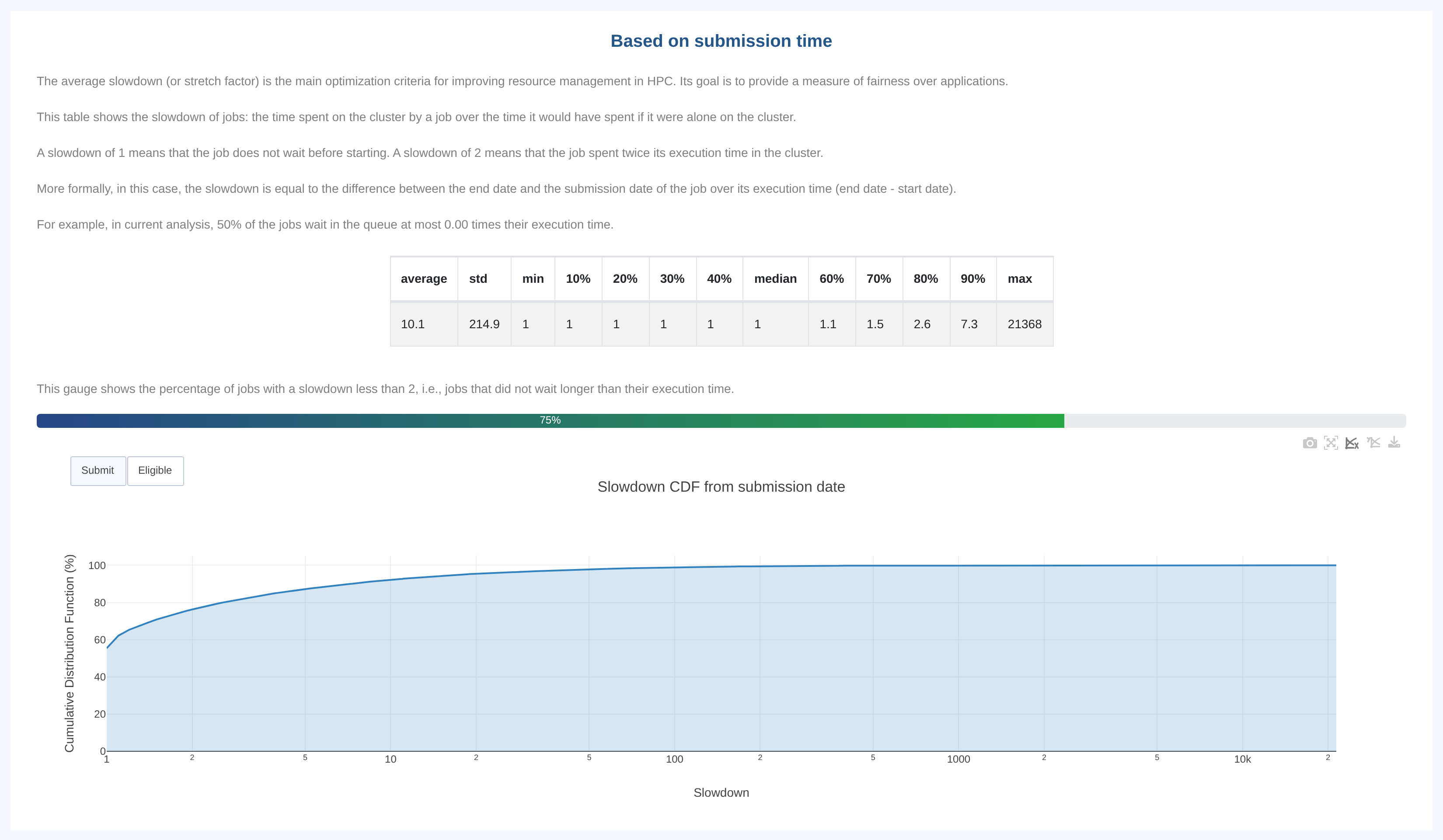
The Cumulative Distribution Function in this example shows that 70.91% of jobs had a slowdown <= 2 meaning that they wait at most as long as their execution time before they could start.
How it works
This section explains how to adjust the data visualization precision and select the reference date for the graphs.
Resolution Options
The precision for visualizing data can be adjusted using the buttons on the left of the graphs. These options determine the time period displayed.
by secondby minuteby hourby dayby month
When selecting by second or by minute resolution, the duration that can be visualized is limited to prevent requesting more data than can be displayed by the browser. In such cases, you can reduce the duration by applying filters based on job submission dates.
Date Reference Options
Depending on what the graph support, the reference date can be selected from the following options:
SubmitEligibleStartEnd
By selecting one of these options, the graph will display data based on the chosen reference date.