Notification profiles
Notification profiles define where and how OKA sends alerts when a Healthcheck detects an issue.
Each profile groups one or more channels (email addresses, webhooks, local files). Multiple healthchecks can share the same profile.
Notification-related pages are accessible from Management → Notifications.
Overview of the notification model
Object |
Role |
|---|---|
SMTP configuration |
Reusable mail server credentials (host, port, encryption, credentials). Referenced by email channels; configure once and share across channels. |
Email channel |
Sends a message to a list of recipients via an SMTP configuration. |
Webhook channel |
Sends an HTTP request (GET or POST) to a URL. |
Local file channel |
Appends a notification entry to a file on the OKA server. |
Notification profile |
Groups any number of channels. Assigned to a healthcheck to activate delivery. |
A typical setup:
Create an SMTP configuration (once per mail server).
Create one or more channels (email, webhook, or local file).
Create a notification profile and add the channels to it.
Assign the profile to a healthcheck in the healthcheck’s Notifications tab.
SMTP configurations
SMTP configurations store mail server credentials so they can be reused across multiple email channels without re-entering them each time.
Access from Notifications → SMTP in the breadcrumb.
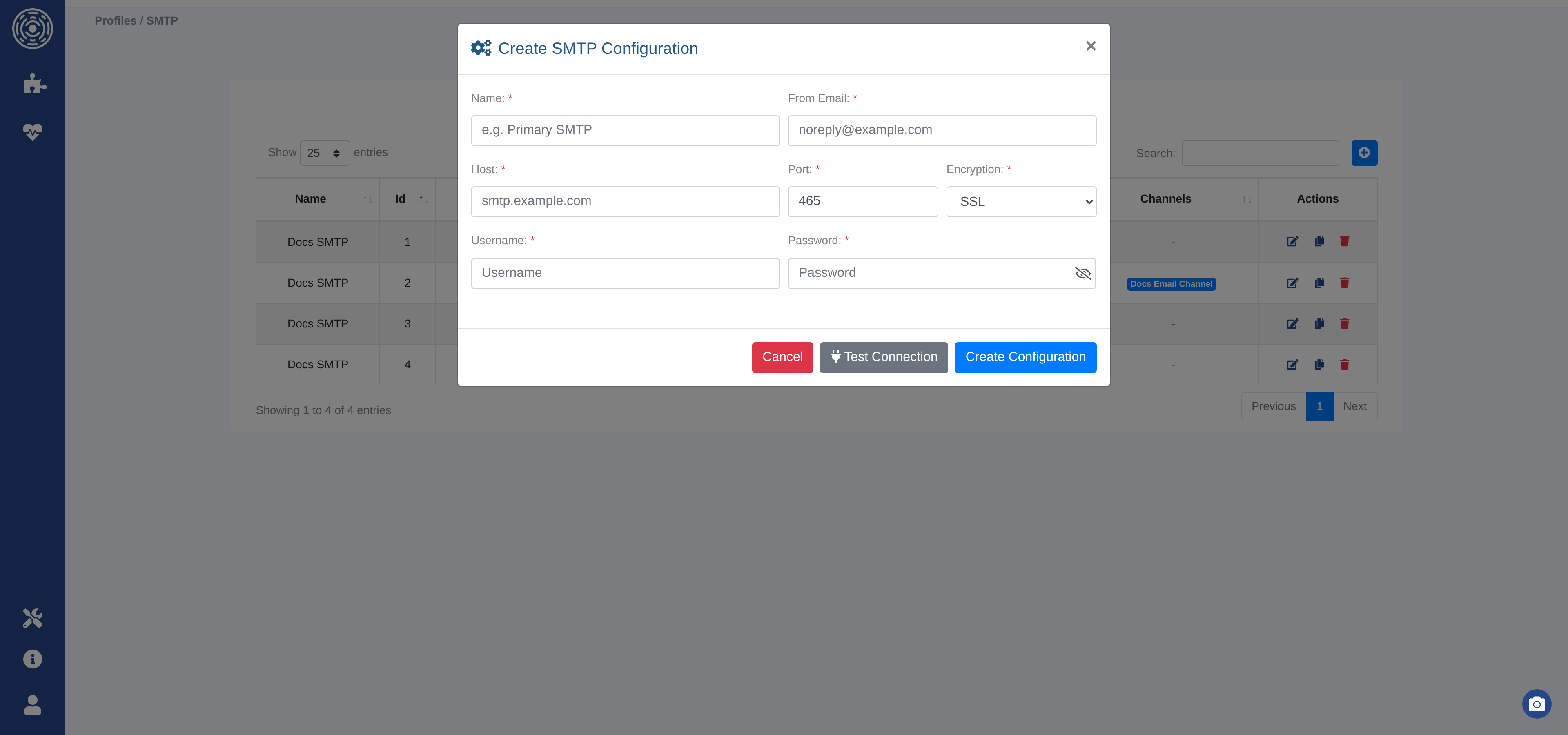
Fields:
Name (required) — a label for this configuration (e.g. “Corporate SMTP”).
From email (required) — the sender address used for all emails from this configuration.
Host (required) — SMTP server hostname or IP address.
Port (required) — server port (default: 465).
Encryption (required) —
SSL,STARTTLS, orNONE.Username / Password — credentials for authenticated SMTP servers.
Click Test Connection to verify connectivity before saving.
Email channels
An email channel sends a notification message to a fixed list of recipients using a chosen SMTP configuration.
Access from Notifications → Email channels in the breadcrumb.
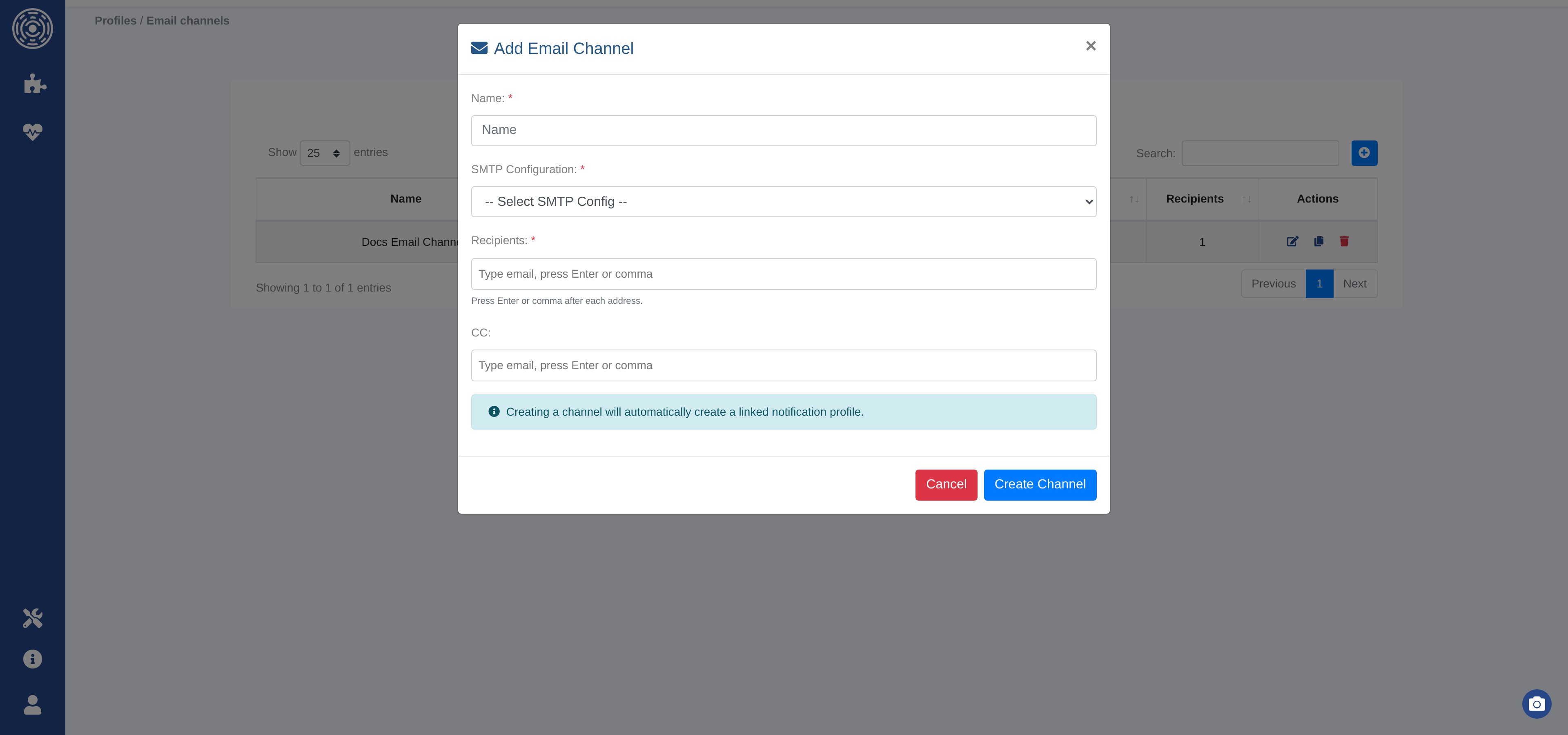
Fields:
Channel name (required) — a label for this channel.
SMTP configuration (required) — select from existing SMTP configurations.
Recipients (required) — one or more email addresses. Type an address and press Enter or comma to add it to the list.
CC — optional list of addresses to carbon copy.
Webhook channels
A webhook channel sends an HTTP request to a URL when a notification is triggered. Use this to integrate with Slack, Teams, PagerDuty, or any service that accepts webhooks.
Access from Notifications → Webhook channels in the breadcrumb.
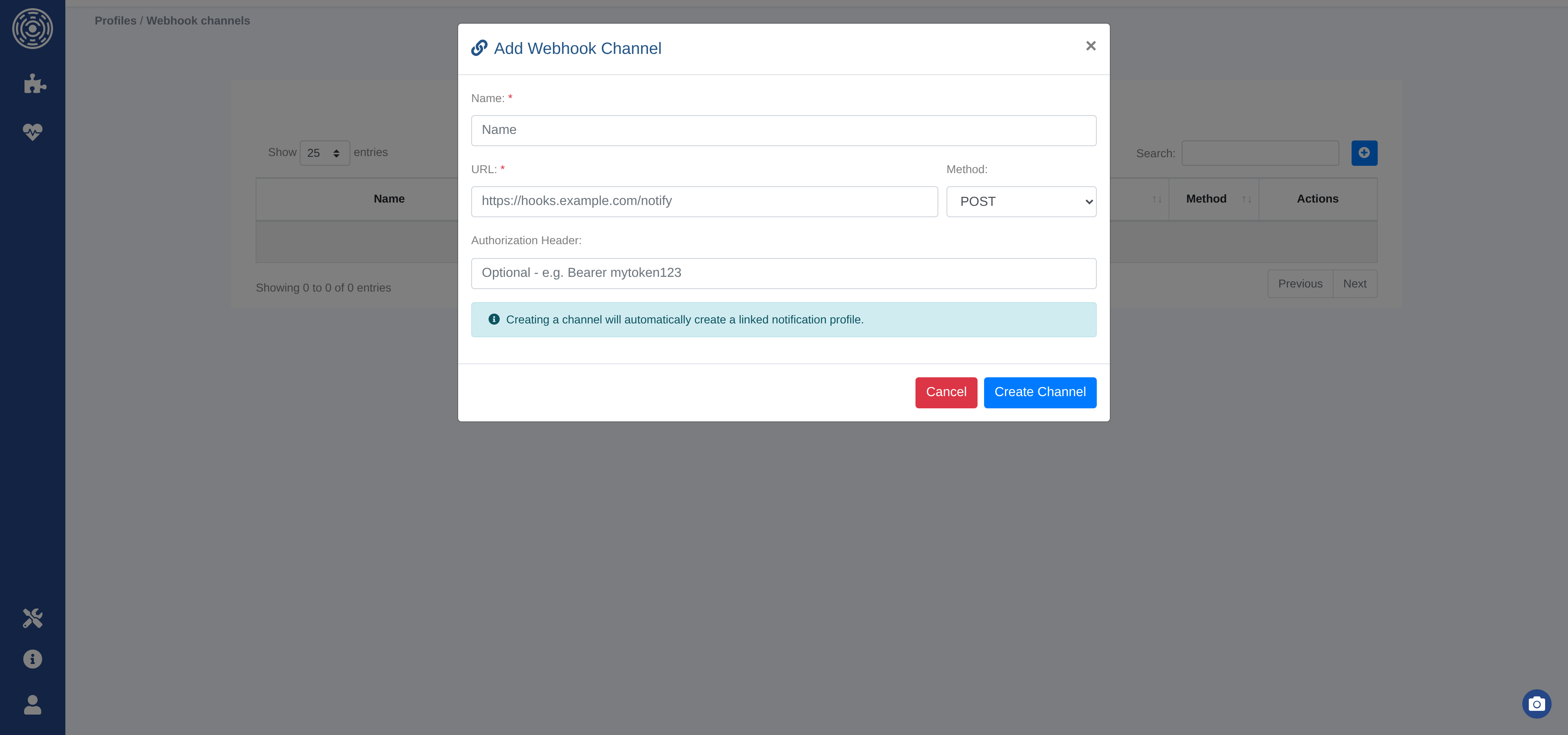
Fields:
Channel name (required) — a label for this channel.
URL (required) — the full webhook URL (e.g.
https://hooks.slack.com/services/...).Method —
POST(default) orGET.Authorization header — optional value for the HTTP
Authorizationheader (e.g.Bearer <token>). Leave blank if the endpoint does not require authentication.
Local file channels
A local file channel appends a structured notification entry to a file on the OKA server. Useful for log aggregation or integration with external monitoring tools.
Access from Notifications → Local file channels in the breadcrumb.
Fields:
Channel name (required) — a label for this channel.
File path (required) — absolute path to the file on the OKA server (e.g.
/opt/oka/notifications/alerts.jsonl).
Note
The path must point to a file, not a directory. The file is created automatically if it does not exist.
Notification profiles
A notification profile groups channels together under a single reusable name. Assign a profile to a healthcheck to activate all its channels at once.
Access from Notifications → Profiles in the breadcrumb.
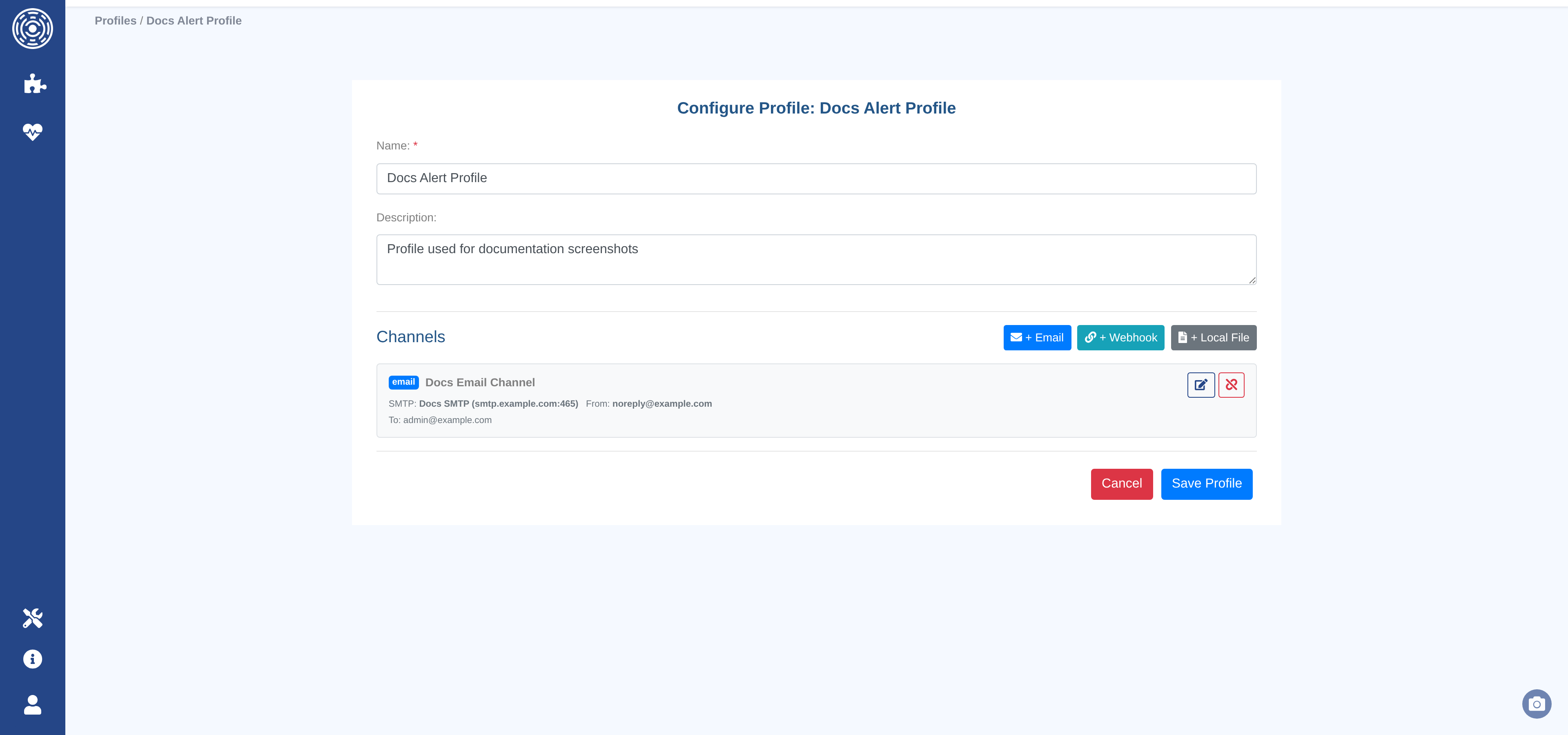
Fields:
Name (required) — a unique name for the profile.
Description — optional free-text description.
Channels — one or more channels of any type (email, webhook, local file).
Adding channels to a profile:
In the profile form, use the + Email, + Webhook, and + Local File buttons. Each button opens a modal where you can either:
Select an existing channel — pick from channels already in the system.
Create a new channel — fill in the channel form inline without leaving the profile page.
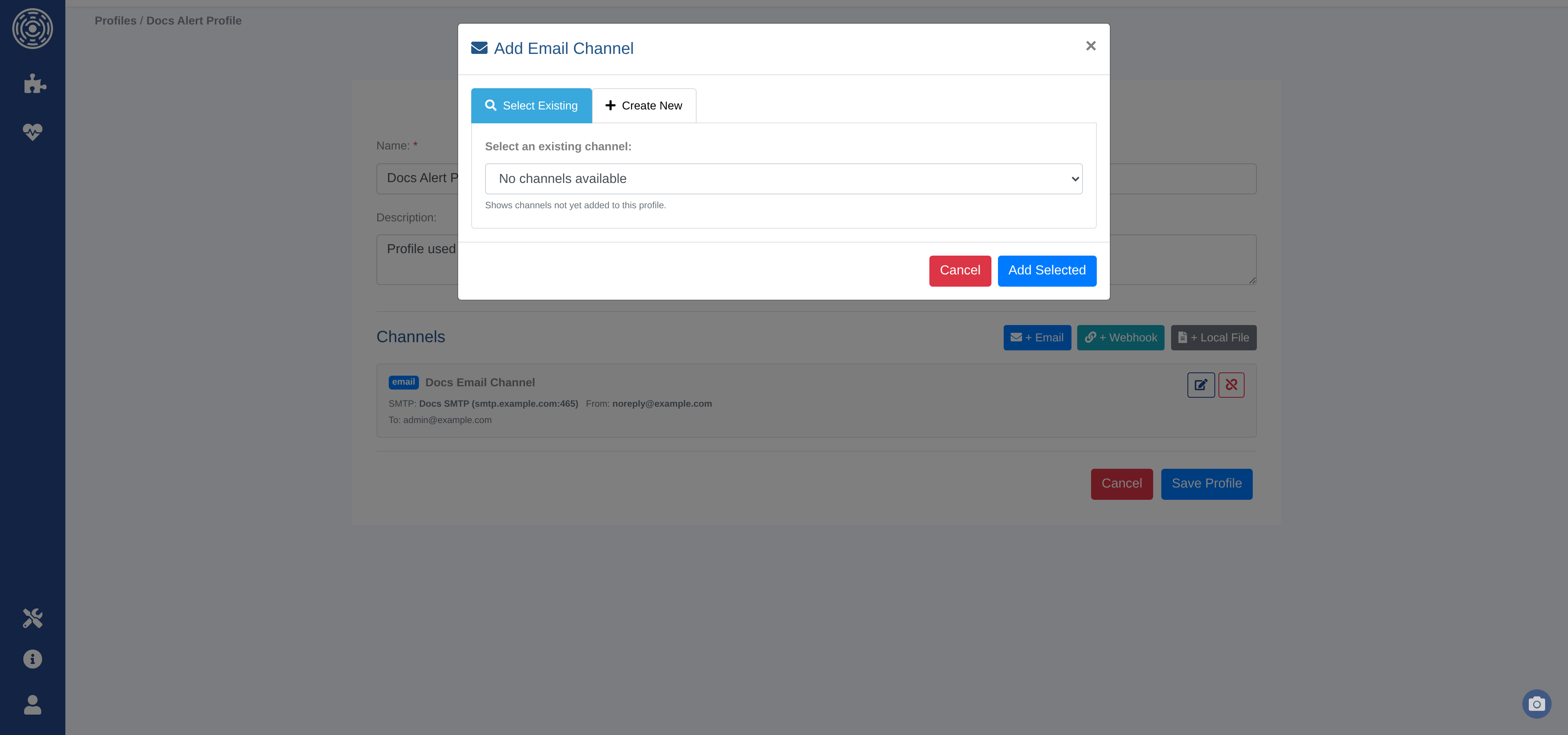
Channels can be removed from a profile without deleting the underlying channel — it will still be available to add to other profiles.
Note
Deleting a notification profile does not delete its channels. Deleting a channel removes it from all profiles it belongs to.