Workloads
A Workload defines a scoped view of your HPC job data: which clusters to query and what filters to apply when selecting jobs. Features such as Healthcheck use workloads to restrict the data they operate on; other features (e.g., reporting) will use them in the same way.
Workloads are managed from Management → Workloads.
Workload list
The Workloads list page shows all existing workloads with their name, linked clusters, and the number of features currently referencing each workload.
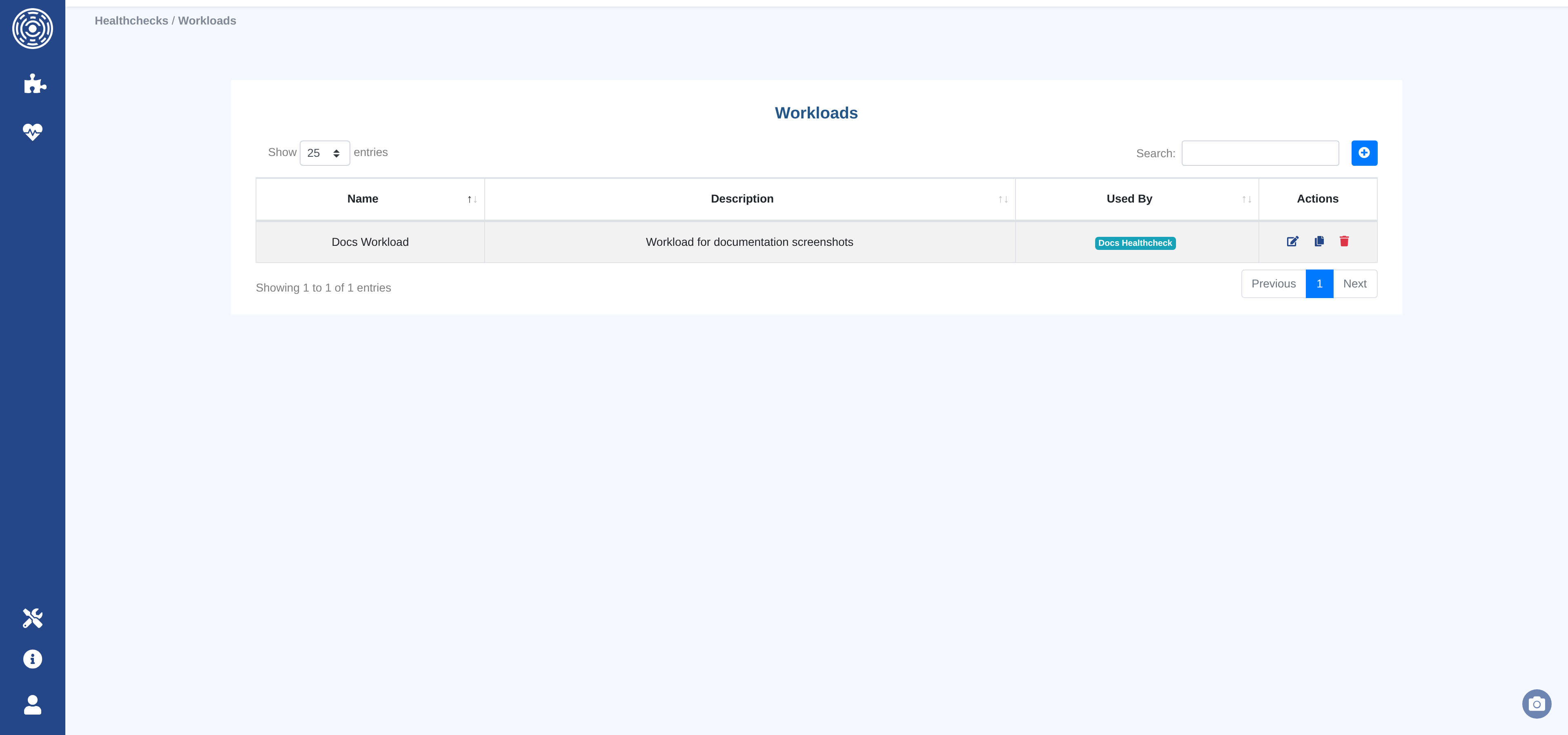
From this page you can create, edit, or delete workloads.
Note
A workload that is referenced by any OKA feature cannot be deleted. Remove or reassign all references to it first.
Creating or editing a workload
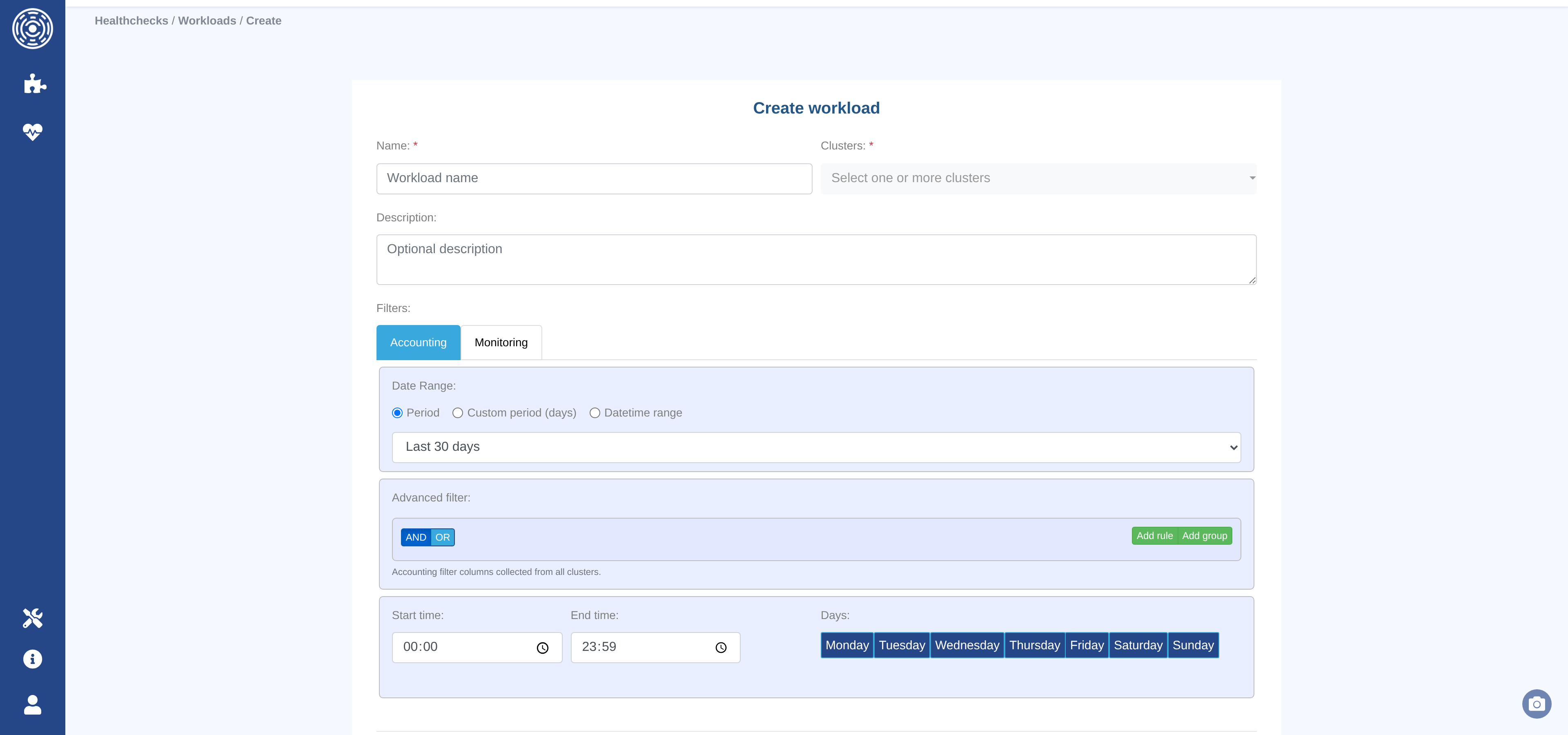
The workload form has three sections: identity, cluster selection, and filters.
Identity
Name (required) — A unique name for the workload.
Description — An optional free-text description of what this workload represents.
Cluster selection
Clusters (required) — One or more clusters whose data this workload will query. Select from the list of all clusters configured in OKA.
Filters
Filters restrict the job data that becomes available when this workload is evaluated. Two independent filter sets are available, one per data source:
Accounting — filters applied to accounting (job history) data.
Monitoring — filters applied to monitoring (node occupancy) data.
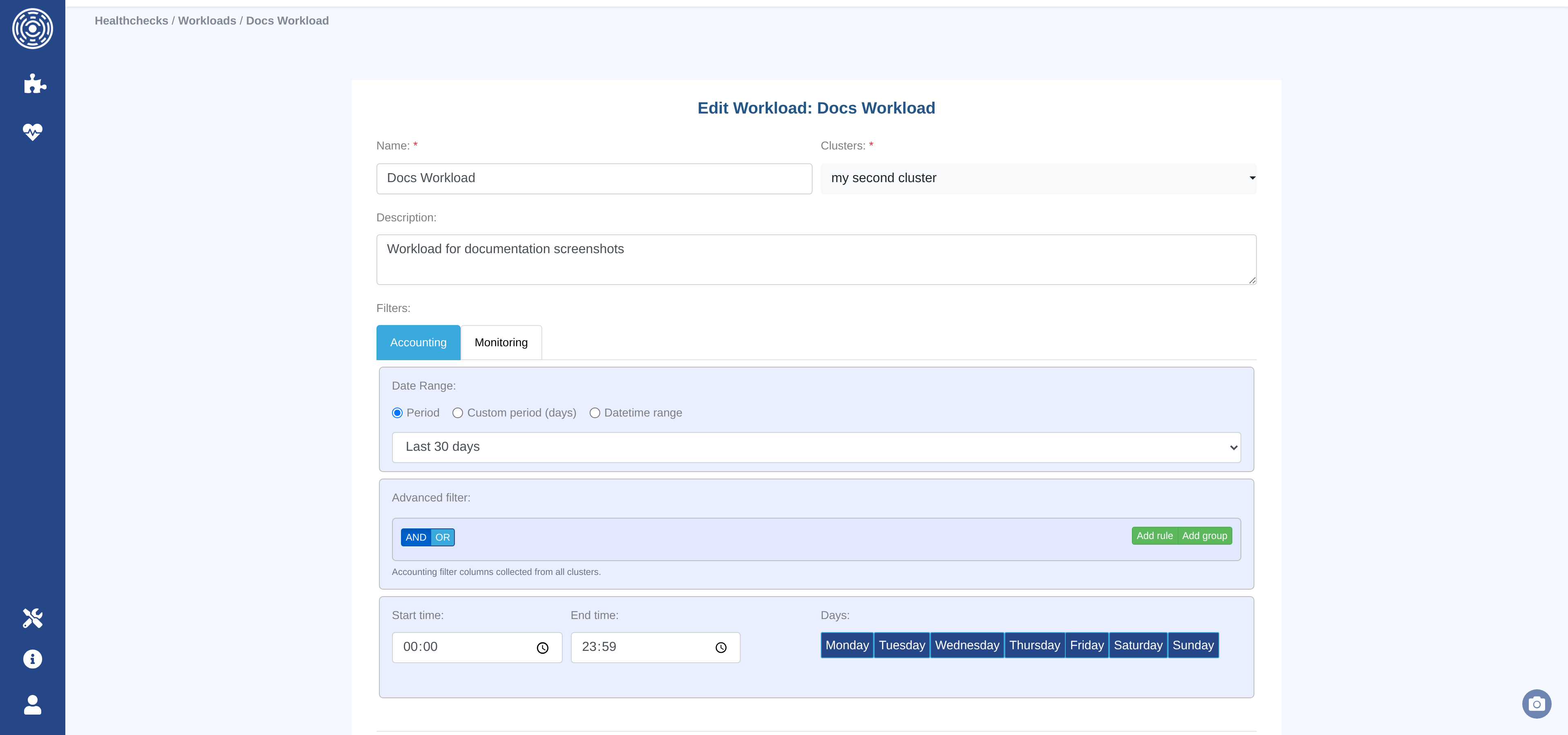
Each filter set has three independent components that can be combined:
1. Date range
Choose one of three modes:
Period — a named rolling window (e.g., Last 30 days, Month to date, Previous month). The window is resolved to absolute dates each time the workload is evaluated.
Available periods:
Value
Description
last_30_daysRolling last 30 days
last_6_monthsRolling last 6 months
last_yearRolling last 12 months
month_to_dateFrom the 1st of the current month to now
quarter_to_dateFrom the start of the current quarter to now
semester_to_dateFrom the start of the current half-year to now
year_to_dateFrom January 1st of the current year to now
previous_monthThe full previous calendar month
previous_quarterThe full previous calendar quarter
previous_semesterThe full previous half-year
previous_yearThe full previous calendar year
allNo date filter (all available data)
Custom period (days) — a rolling window of N days back from the moment of evaluation.
Datetime range — an explicit start and end date, selected via a calendar picker. Use this for historical or fixed-window analysis.
2. Advanced filter
An advanced filter component for applying field-level conditions (e.g., restrict to a specific partition, account, or job state). Conditions within a group or between groups can be combined with AND or OR conditions.
If the selected clusters have no data sources configured, a warning is shown and the advanced filter is unavailable until a data source is set up.
3. Recurring filter
Restricts evaluation to jobs submitted during specific times of day or days of the week.
Start time / End time — the time window within a day (default: 00:00–23:59).
Days — checkboxes for Monday through Sunday (all selected by default).
Note
All three filter components within a source tab (date range, advanced, recurring) are applied simultaneously as an AND condition. The accounting and monitoring filter sets are independent of each other.